Purpose:
The purpose of this article is to provide direction to Outreach users in manually syncing an individual Account with Salesforce.
Intended Audience:
- Outreach Users
Notes:
- The CRM's Plugin settings determine how changes to account records are synced between the CRM and Outreach Platform.
- Manual syncs impact API Call Usage. Manually syncing records uses more API calls than allowing records to automatically update based on the plugin's settings.
- Users can sync single or multiple records at a time. For more information regarding how to manually sync multiple accounts, refer to the How To Manually Sync Multiple Accounts with Salesforce article.
- The Skip Plugin Filters and Conditions, Force update of all fields, and Include associated contacts options bypass the plugin's configuration settings.
How To Manually Sync an Account with Salesforce
- Access the Outreach Platform.
- Click the Accounts icon (briefcase) in the navigation sidebar.
- On the Accounts page, click the applicable Account to sync.
- On the Account Profile Panel, click the Salesforce icon (cloud).
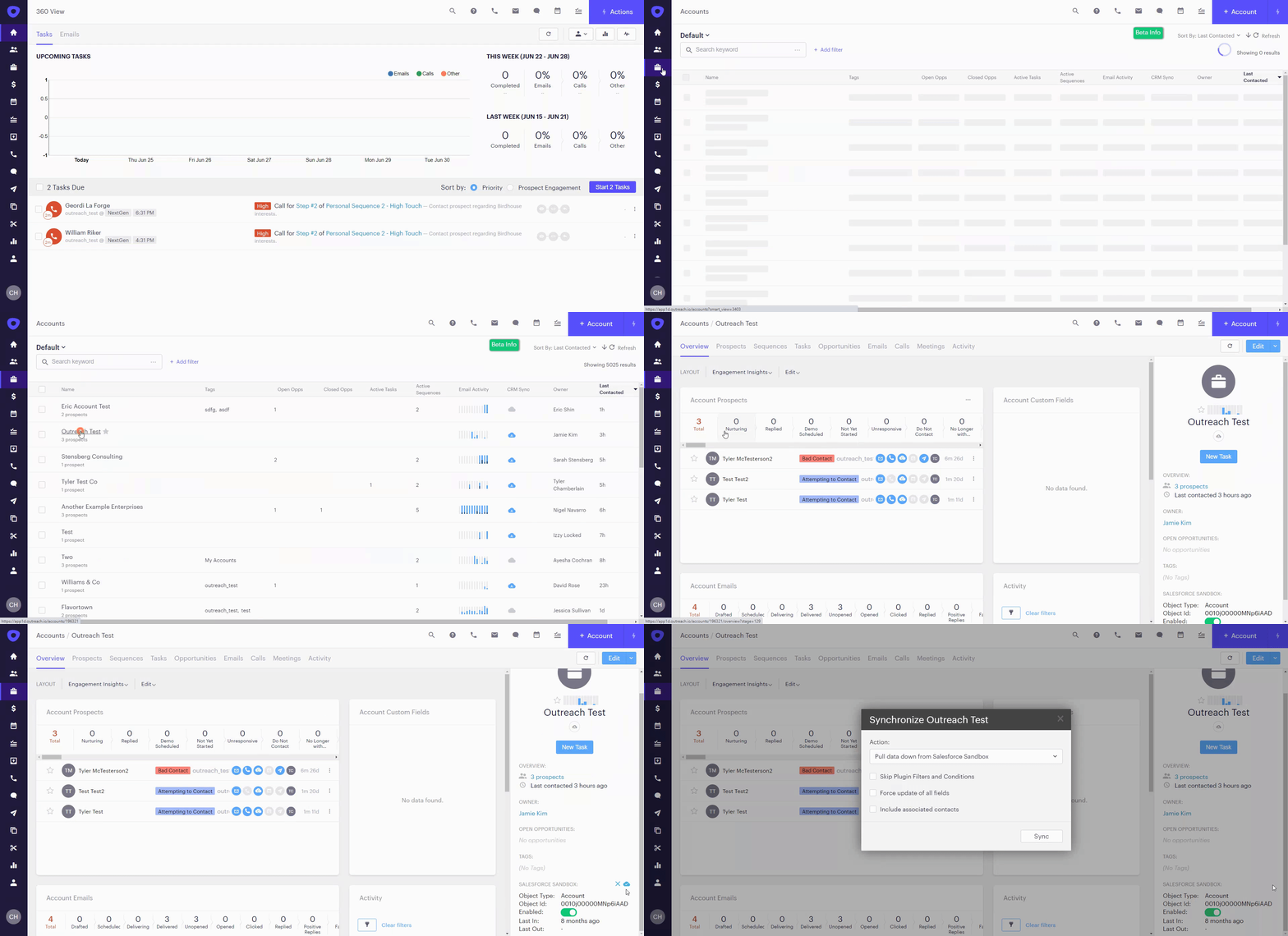
- Select the applicable direction to sync the record from the Action: dropdown menu on the Synchronize Account window.
- Click to select the applicable syncing options as outlined in the table below:
Note: Syncing these options will bypass the plugin's configuration settings.Option Description Skip Plugin Filters and Conditions Ignores any conditions set on Inbound/Outbound Update in the CRM.
Force update of all fields Updates Outreach or the CRM with the latest values, regardless of whether there is a new Modified By date since the last polling cycle. Include associated contacts Updates Outreach or the CRM to include contacts associated with the account. - Click Sync.
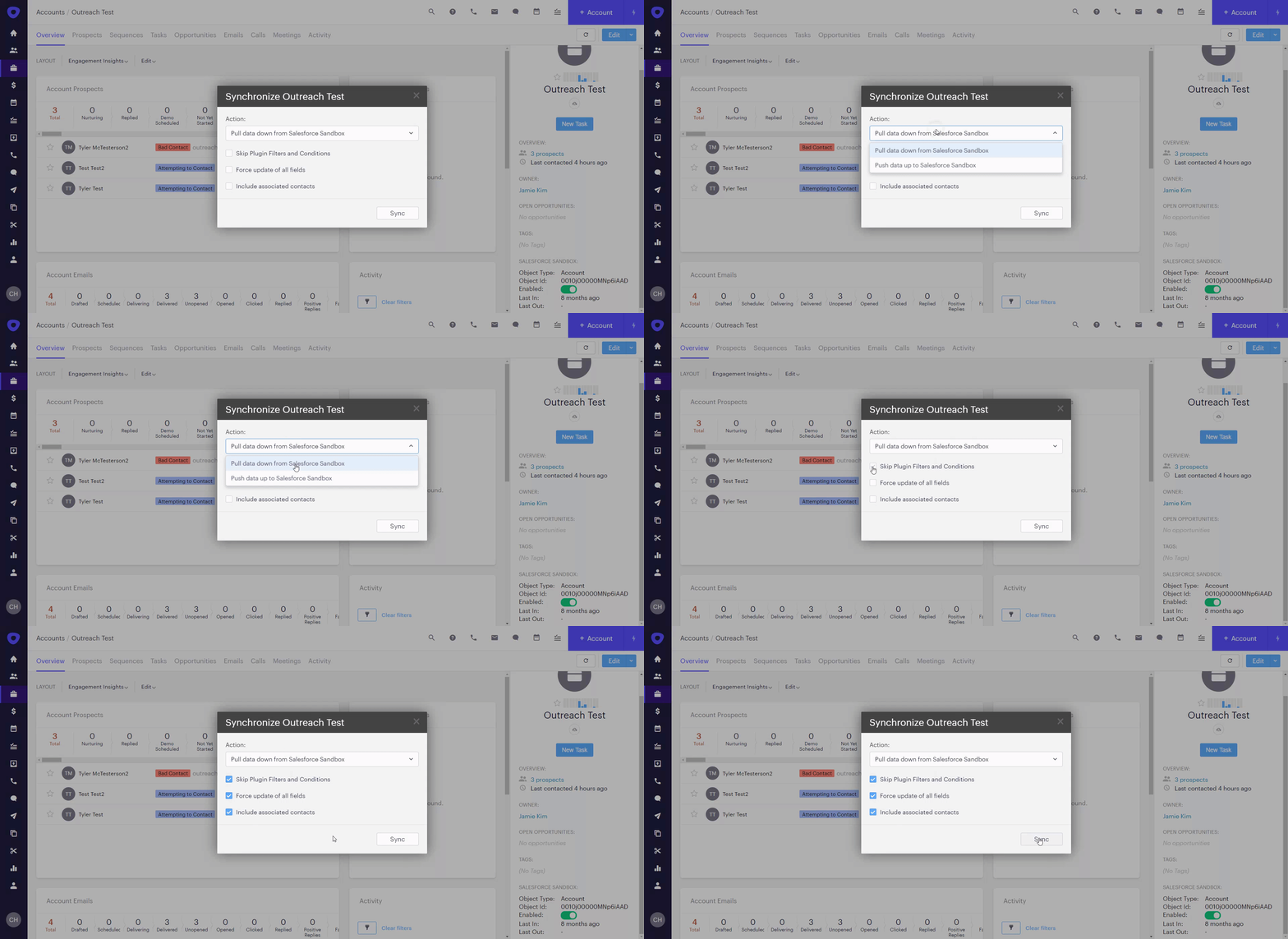
Outreach syncs the Account record as configured.
Was this article helpful?
That’s Great!
Thank you for your feedback
Sorry! We couldn't be helpful
Thank you for your feedback
Feedback sent
We appreciate your effort and will try to fix the article