Objective
The purpose of this article is to provide direction to Outreach Admins on how to change the order of triggers.
Applies To
- Triggers
- Outreach Admins
Procedure
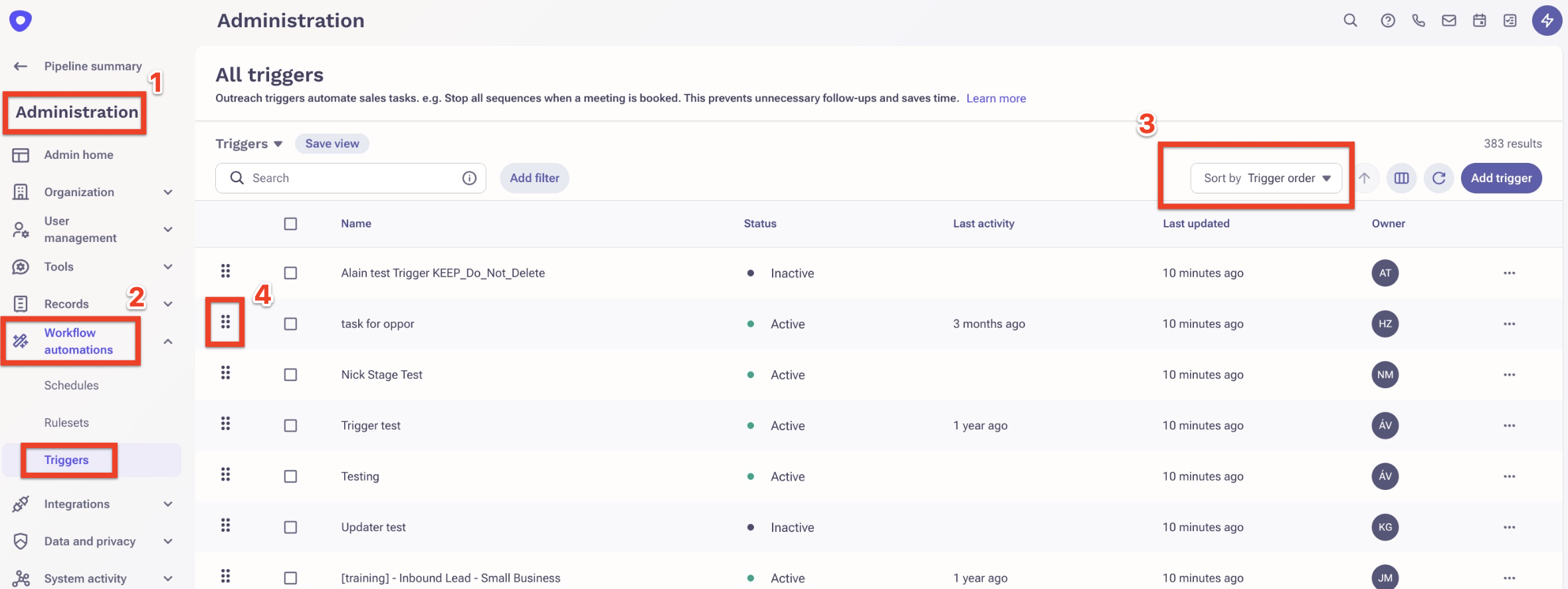
1 - From the Outreach platform, go to Administration,
2 - Expand the Workflow automations and click on Triggers,
3 - On the triggers page, sort by Trigger order
4 - Click on the trigger and move up or down to change the order.
Additional Information
Some of the best practices for the trigger:
- Leverage Trigger Priorities via Conditions
- Avoid Conflicting Actions
- Ensure that two triggers don’t try to update the same field or sequence at the same time.
Was this article helpful?
That’s Great!
Thank you for your feedback
Sorry! We couldn't be helpful
Thank you for your feedback
Feedback sent
We appreciate your effort and will try to fix the article