Note: Feature(s) Pending Rollout Features and functionality described on this page are part of our September 2026 release, which is rolling out to eligible customers September 10-September 24, 2026. See our Release Notes here to learn more. |
Objective
Learn Outreach Omni and how to use it effectively and get the best results from the AI-powered conversational agent.
Applies To
- Outreach Users
Overview
Omni is an AI-native conversational agent that gives sellers context-aware, multi-turn access to Sales Intelligence across the Outreach platform. Instead of navigating across records, reports, or recordings, users can ask natural language questions and quickly surface relevant insights, context, and actions tied to their sales workflow.
Omni maintains conversational memory, understands follow-up questions, and adapts responses based on user context and the page or object being viewed.
Configuration
Follow the Omni enablement guide for full details on enabling Omni for the organization.
Accessing Omni
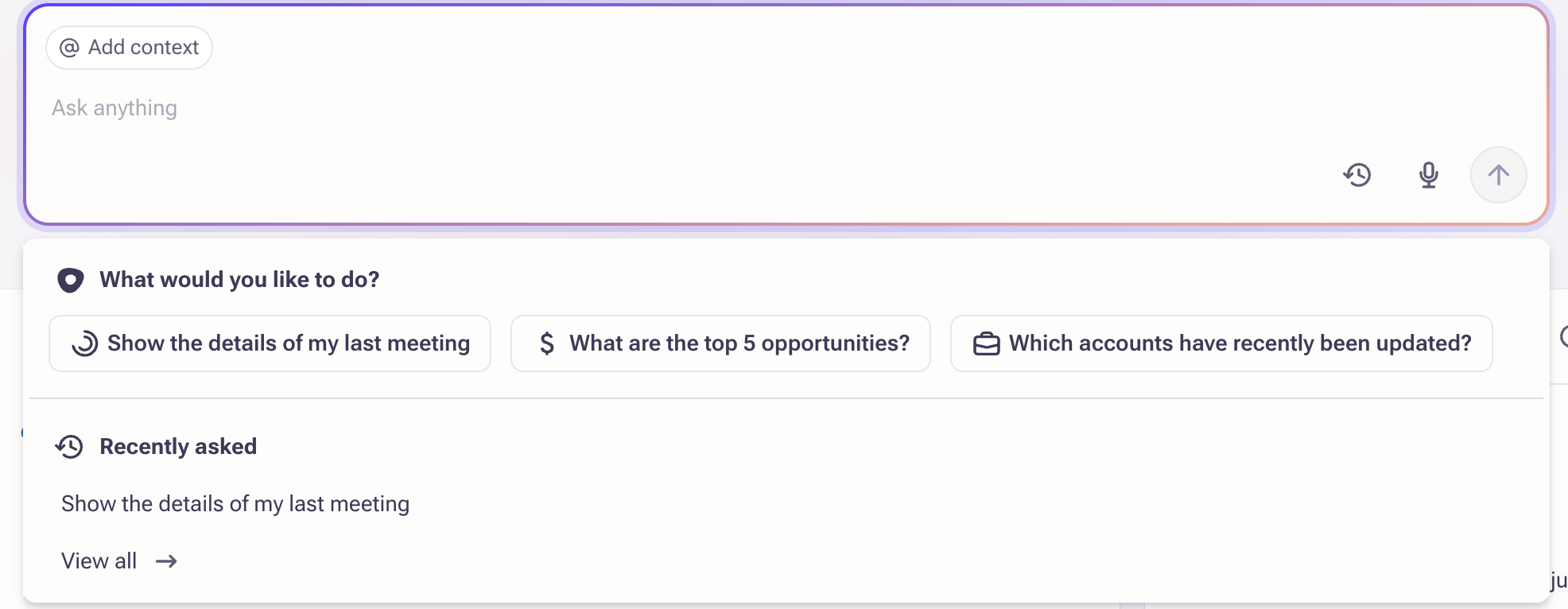
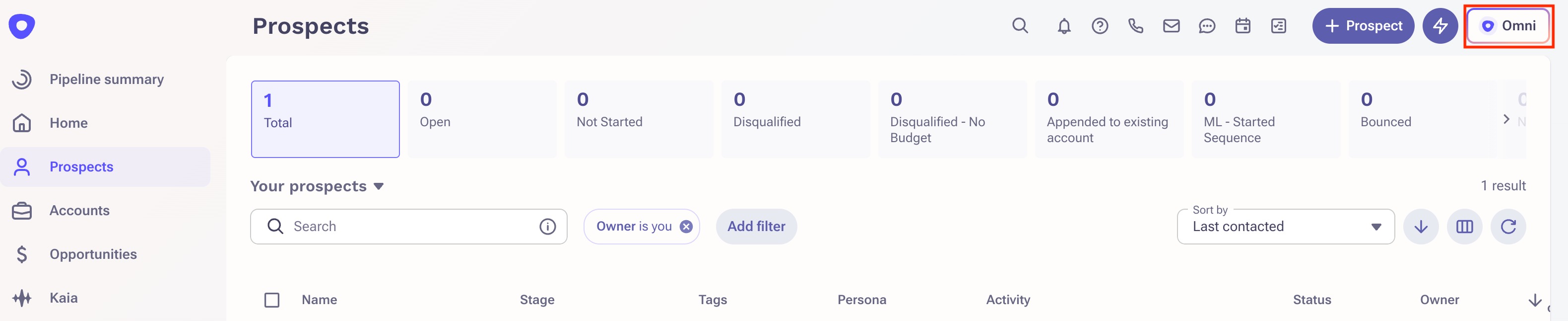
Omni can be accessed from the home page or using the Omni button.
When to Use
Omni is most effective as an exploration and discovery tool that helps users surface relevant insights faster. Use it to:
- Quickly understand what is happening across accounts, opportunities, or meetings
- Surface risks, objections, or next steps from customer conversations
- Recall commitments, timelines, or follow-ups
- Explore themes across activity, emails, or Kaia recordings
- Draft emails based on conversation or account context
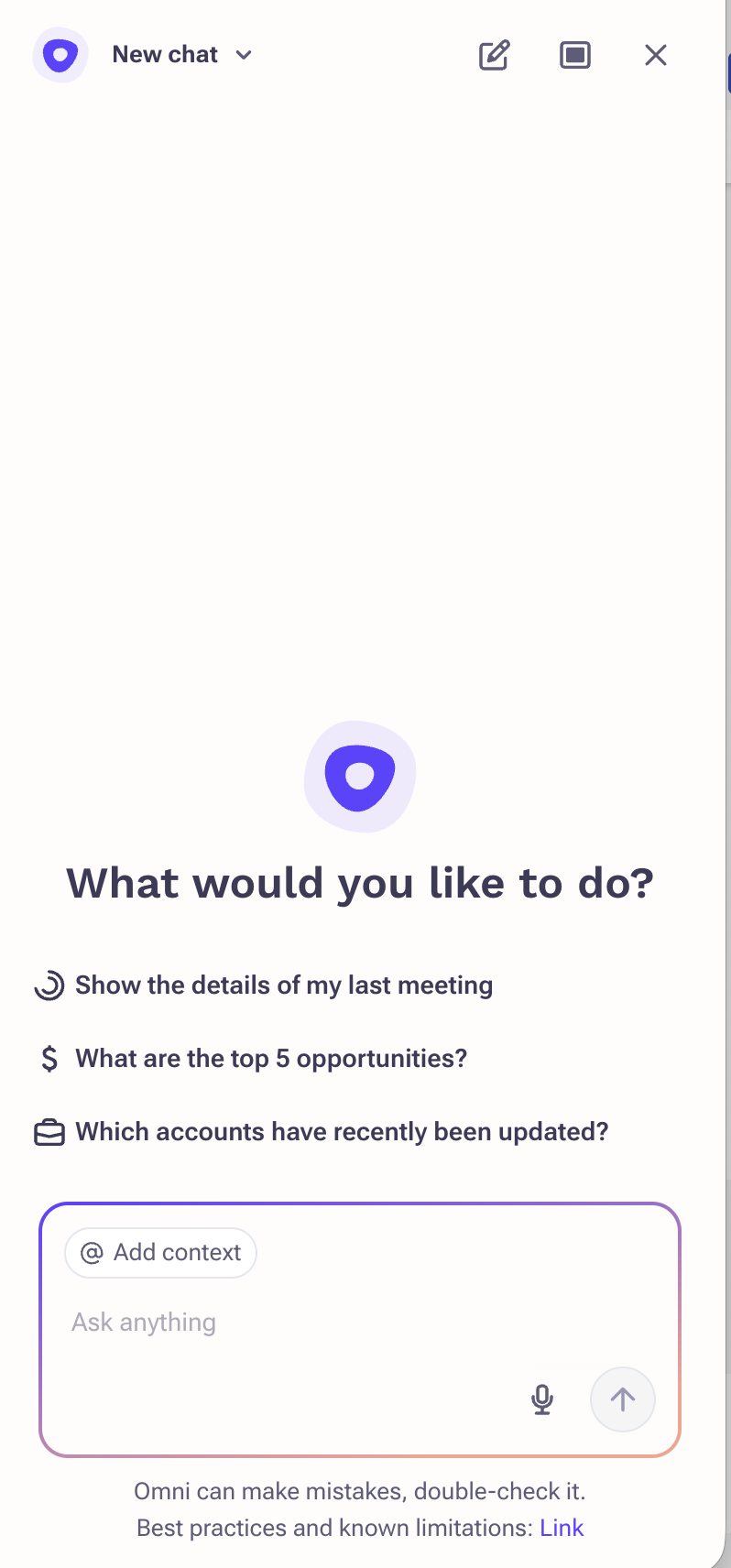
Just getting started: Omni will soon be able to answer questions about your forecasts, custom objects, smart account plans and more.
Adding Context
- Open Omni.
- Click Add context.
- Select the appropriate context:
- Accounts
- Opportunities
- Prospects
- Kaia recordings
Follow up answers will acknowledge the context selected.
Confirming and Approving Actions
When you ask Omni to take an action that changes a record, like creating a task, updating a field, or enrolling a prospect in a sequence, Omni shows you what it's about to do before making any changes. You always have the final say.
- If Omni already has everything it needs, it shows a confirmation with a preview of the change. Approve it to apply the change, or cancel it to discard it.
- If Omni needs more information first, such as a required field value, it asks a short set of questions before showing the confirmation.
- Once you approve a change, Omni tells you exactly what it did.
- Confirmations currently happen within the conversation. Dedicated widgets for specific actions are planned for future releases.
Stopping a Request in Progress
You can stop Omni while it's working on a request:
- The send button changes to a stop button while Omni is generating a response or completing a task.
- Stopping a long-running task may prompt you to confirm, since canceling partway through can take a moment to complete.
- After you stop a request, your original input, along with any context or tools you added, is restored in the composer, so you can edit and resend it.
- Stopped requests stay in the conversation, marked as interrupted.
Example Prompts
Email and Follow-Up Assistance
- Draft a follow-up email summarizing next steps from this meeting.
- Help me write an email addressing the customer's pricing concern.
- Create a recap email based on this conversation.
Post-Meeting Context
- What were the key takeaways from this meeting?
- Did the customer raise any objections?
- What follow-ups were agreed to on this call?
General Sales Intelligence
- What are the top opportunities I am working right now?
- Which accounts have had recent activity but no next steps?
- Are there deals at risk based on recent conversations?
Account and Opportunity Insights
- What concerns has this account raised recently?
- Has pricing come up in recent discussions?
- What competitors have been mentioned for this opportunity?
Multi-Conversation and Trend Analysis
- Across recent meetings, what themes are coming up?
- Are there recurring objections across similar opportunities?
- Are there common reasons deals are being delayed or lost?
Best Practices
How to Get the Best Results
- Ask focused, specific questions
- Reference an object, timeframe, or goal when possible
- Use follow-up prompts to clarify or refine answers
- Treat responses as assistive guidance, not final truth
- Validate outputs before sharing externally or taking action
Conversation quality improves as users narrow scope and build on prior questions.
Using Follow-Up Prompts Effectively
Omni improves with conversational refinement. After receiving an initial response, try prompts like:
- Can you be more specific?
- Where did that come up?
- What should I do next?
What to Avoid
- Overly broad or vague prompts
- Multiple unrelated questions in a single prompt
- Avoid using jargon, acronyms or ambiguous language
- Assuming data exists if it was never discussed or captured
Omni supports human decision-making. It does not replace judgment or verification.
FAQ
Will Omni make changes to my data without asking?
No. Any action that changes a Prospect, Account, or Opportunity record requires your approval first.
Can I stop Omni while it's working on a request?
Yes. The send button becomes a stop button while Omni is generating a response or completing a task. After you stop a request, your original input is restored in the composer so you can edit and resend it.
Can I take bulk actions?
Not currently. Bulk actions aren't supported in this release.
Was this article helpful?
That’s Great!
Thank you for your feedback
Sorry! We couldn't be helpful
Thank you for your feedback
Feedback sent
We appreciate your effort and will try to fix the article