Objective
The purpose of this article is to provide MCP Client developers, and other advanced users, with instructions on how to connect to Outreach MCP Server from CLI or through client configuration. The instructions here expects some familiarity with technical concepts around MCP.
Applies To
- MCP Client and other Agent to Agent Developers
- Microsoft CoPilot, Gemini, Visual Studio Code and other CLI based MCP Clients
- Outreach customers who want to integrate Outreach MCP Server directly into their revenue workflows
Before You Begin
Pre-requisites
This article expects familiarity with MCP Tools
- Please read Outreach MCP Server documentation to understand what functionalities are available from Outreach.
- Outreach MCP Server must be enabled on the instance you are trying to connect.
- MCP clients might require you to install Node.js or other software to set up your environment. Make sure your environment is set up fully to create and run MCP Clients.
- Any other client specific configuration. For example, some MCP clients might require you purchase and apply additional licenses and require you to enable developer mode before CLI or config tools can be accessed to set up and use MCP.
Overview
Claude Desktop
You can use the Claude Developer tools to set up a new custom connector to connect to Outreach via MCP.
| Note that if you already have some other configuration set up, the screenshots provided below might not be an exact match, but you can follow the same instructions |
To do this, go to Claude > Settings > Developer (under Desktop app section) > Click on Edit Config: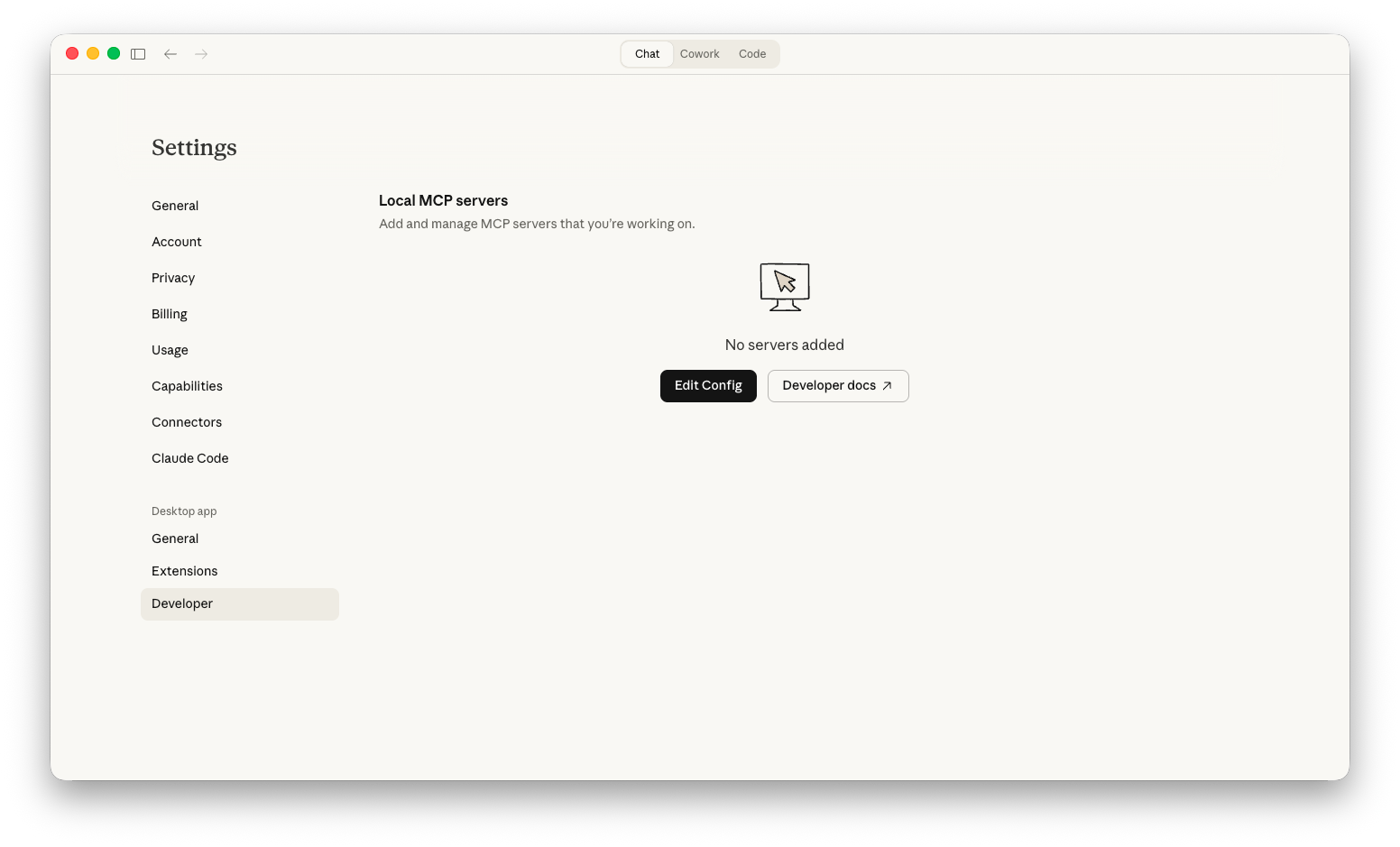
Open the claude_desktop_config.json file in a JSON compatible editor, like Visual Studio Code (if not you can use the default text editor for your OS like TextEdit in Mac or Notepad in Windows), and add the following config:
{
  "mcpServers": {
      "outreach": {
          "command": "/usr/local/bin/npx",
          "args": [
          "mcp-remote",
          "https://api.outreach.io/mcp/"
          ]
      }
  }
}
Note:
- Please replace the npx path with what's appropriate for your environment. For example, on Macs you can find the path by running
where npxcommand in a Terminal. - Make sure you are accounting for any other configuration that might be already present.
Finally, make sure to restart Claude Desktop, or any other app you are using, to for it to pick up the latest config changes.
Next steps
If you have set up everything correctly, at this point Claude Desktop should be able to connect with Outreach via MCP.
Next step is to fully verify that everything is working correctly, please follow the steps here.
Was this article helpful?
That’s Great!
Thank you for your feedback
Sorry! We couldn't be helpful
Thank you for your feedback
Feedback sent
We appreciate your effort and will try to fix the article