Objective
The purpose of this article is to provide Microsoft Copilot Agent developers, organizational Admins and Sellers knowledge on how to integrate Outreach MCP Server directly into Microsoft Copilot Agents and use Outreach Revenue Intelligence tools directly inside their Microsoft 365 Apps.
Applies To
- Outreach customers who want to access Outreach MCP Connector inside their Microsoft Copilot Agents
- Customers who are using Microsoft Copilot Agents today in their daily sales workflows
- Developers who are using or building Microsoft Copilot Agents through Copilot Studio
- Customers who are using Microsoft 365 Applications, such as Microsoft Teams or Microsoft Dynamics, as part of their daily sales workflows
Before You Begin
This article expects basic familiarity with Microsoft Copilot Agents. For Outreach via MCP:
- Please read Outreach MCP Server overview to understand what functionalities are available from Outreach.
- Outreach MCP Server must be enabled on the instance you are trying to connect.
- Microsoft Agent tooling like Studio and Agent Builders must be fully set up, including any licensing and environmental requirements required by Microsoft to enable MCP
Setup
You can use the Microsoft Agent Studio MCP functionality to build up a new Agent, or connect an existing Agent to Outreach via MCP. Any Microsoft app that supports Copilot Agents can then directly use Outreach's revenue intelligence inside their daily sales workflows.
|
This document assumes that you already have a Copilot Agent and you want to add Outreach MCP Server Tools directly to that Agent. If you don't have an existing Agent, or want to create a new one specifically for Outreach MCP, you can follow Microsoft Copilot Studio documentation to set one up. Outreach doesn't expect end users to set up Agents. Instead organization Admins, IT or Developers should publish appropriate Agents for Sellers to use. Note that if you already have some other configuration set up, the screenshots provided below might not be an exact match, but you can follow the same instructions. |
Adding MCP Tools to Copilot Agents
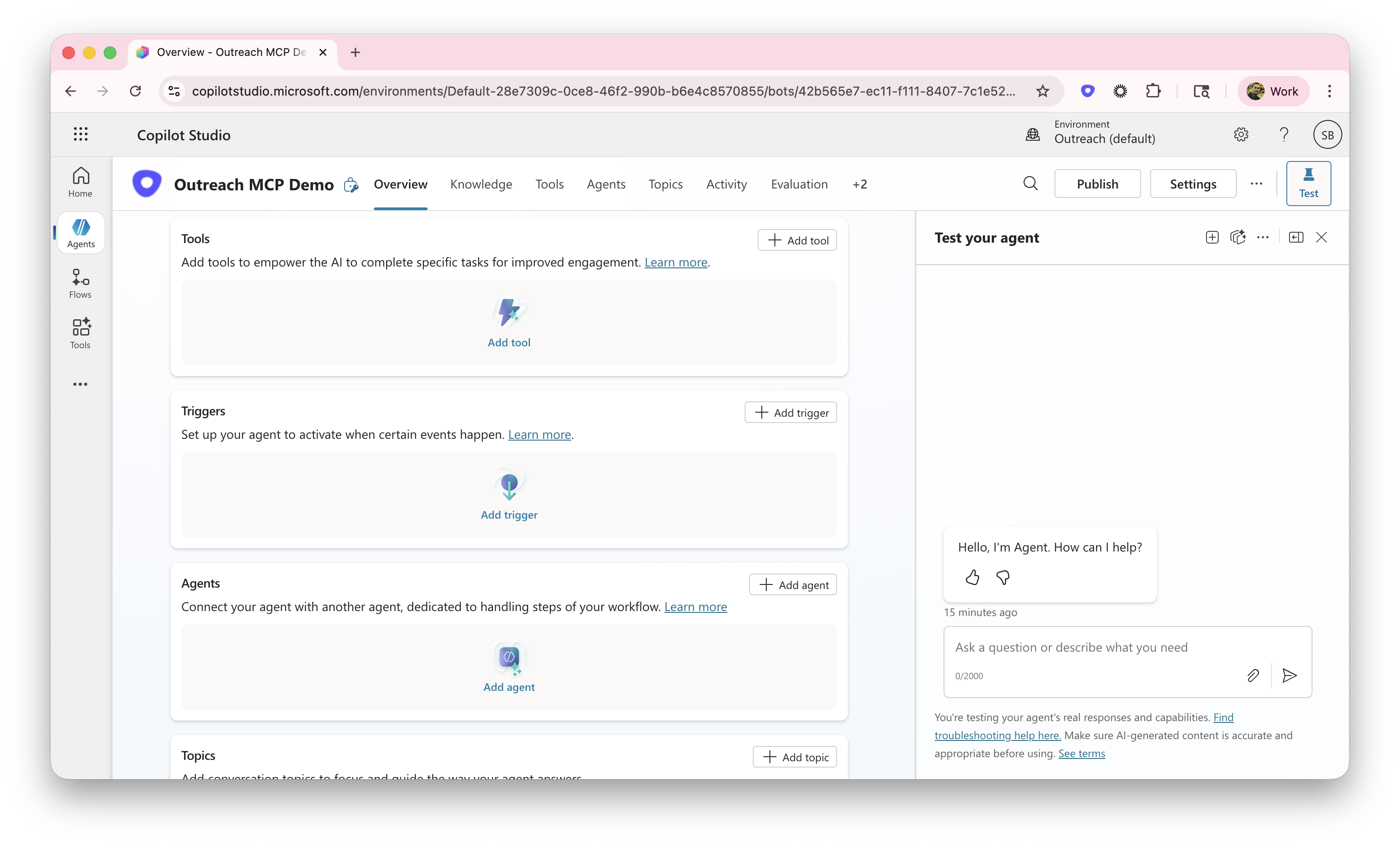
- Log in to Microsoft Copilot Studio.
- Click Agents.
- Select the Agent for Outreach MCP Server.
- Click Overview > Tools > Add tools.
- From the Add tool window, select Model Context Protocol.
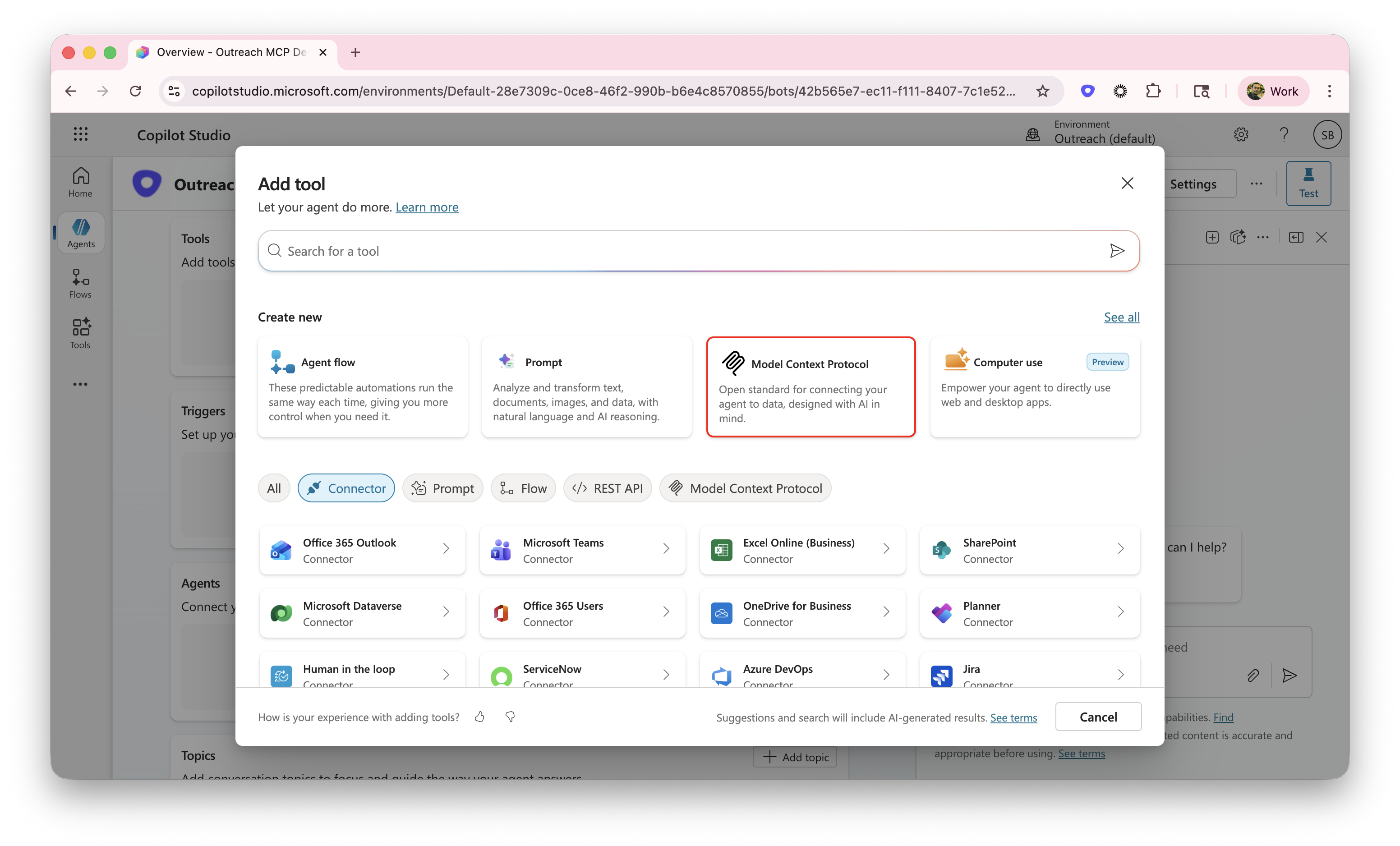
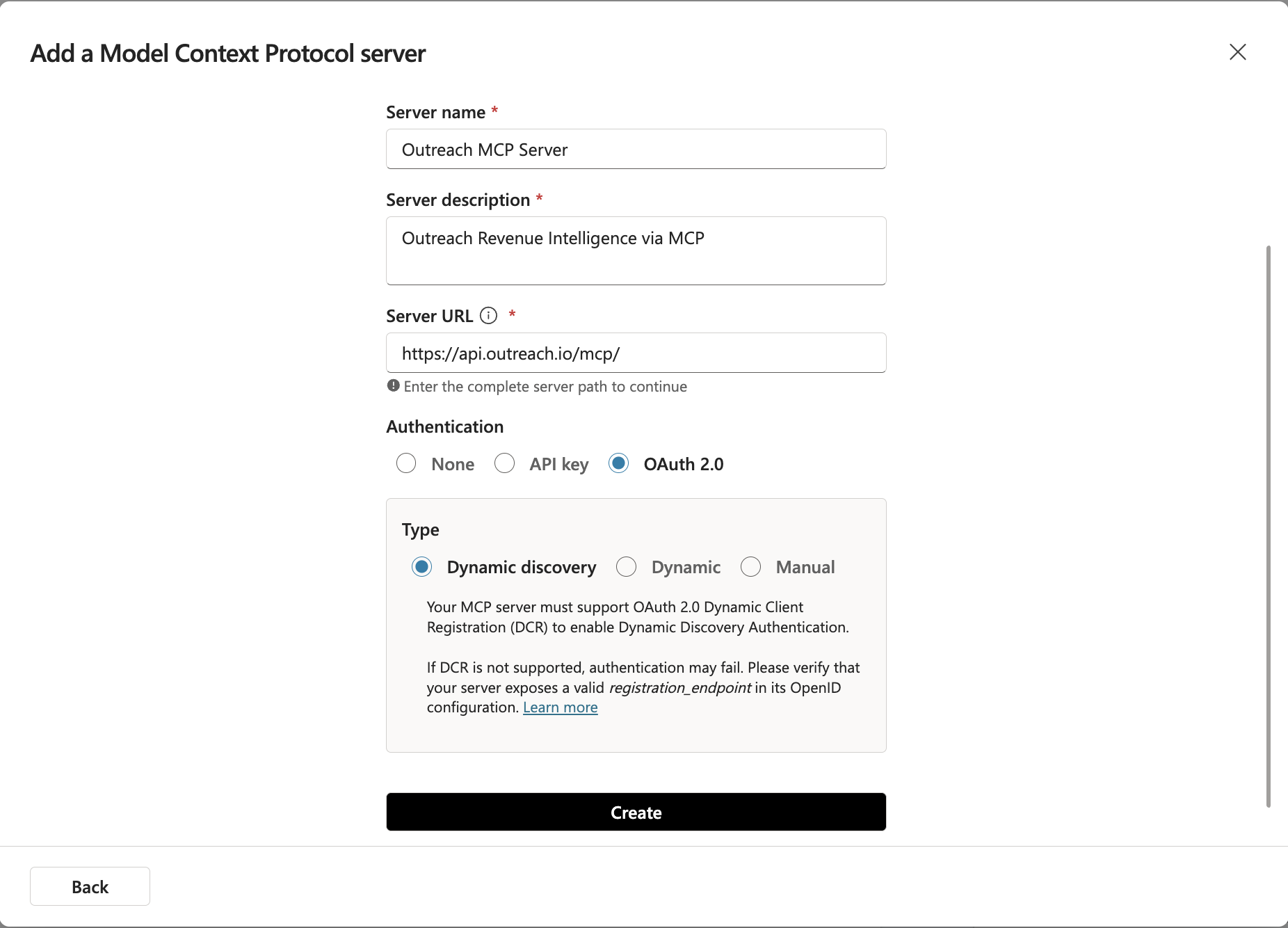
In the pop-up dialog that opens, enter the following details:
- Name – Outreach MCP Server (or your preferred name)
- Description - Outreach Revenue Intelligence via MCP (or your preferred description)
- Server URL – https://api.outreach.io/mcp/ (make sure you enter the URL exactly)
- Authentication – OAuth 2.0 with Dynamic Discovery
- Click Create.
Once Copilot studio has successfully added the connector to it's tool kit, the next step would be to Authenticate with Outreach and Authorize Microsoft Copilot with Outreach MCP Server.
Make sure you are already signed into Outreach with the credentials you want to provide Copilot Studio. You can easily check this by going to https://web.outreach.io. If you are not on the correct organization, sign out and sign back in.
Go back to the Outreach MCP Server connectors window, and click on the 'Not connected' dropdown > Create new connection: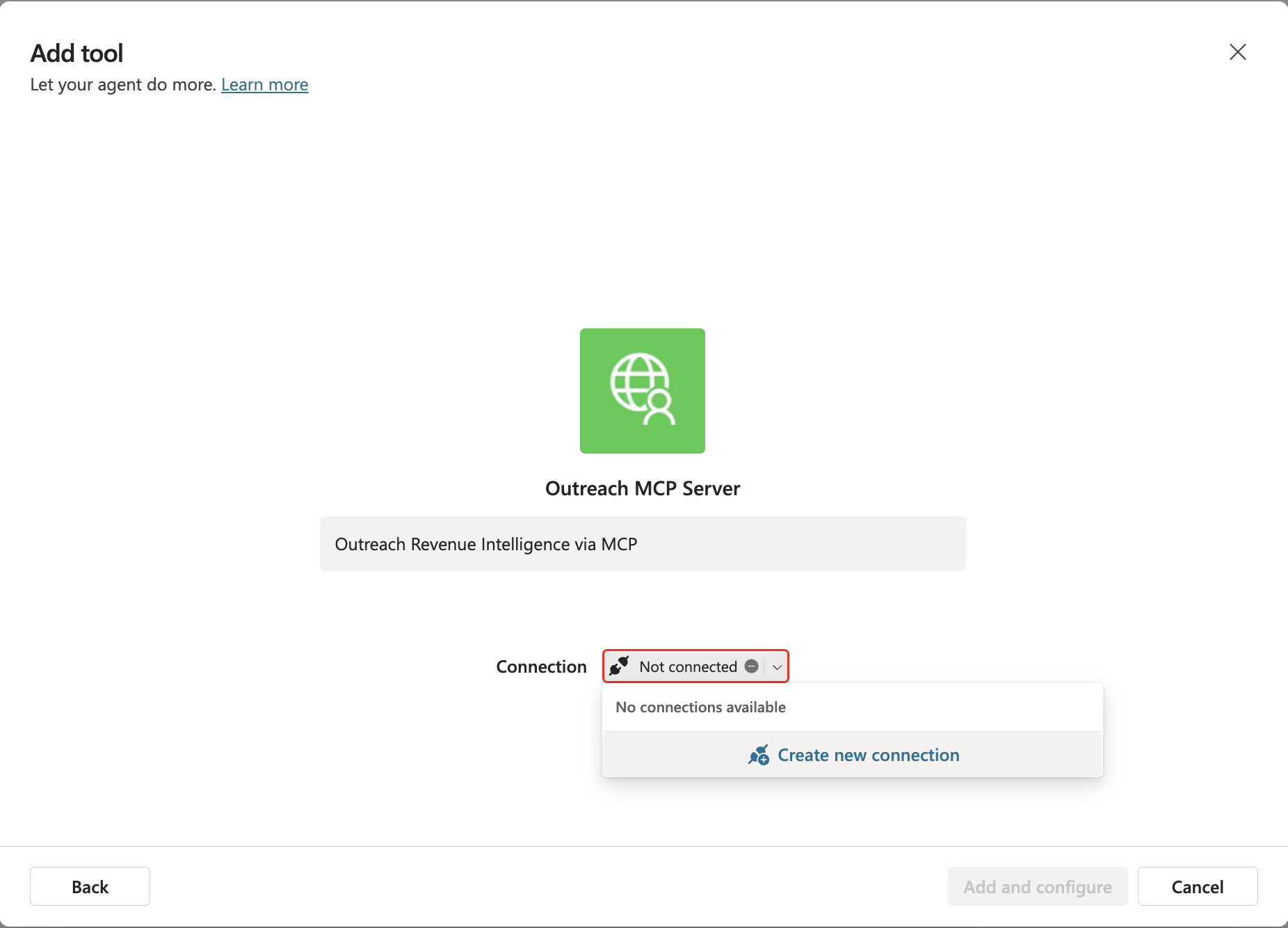
In the next window, hit Create. This will open a new pop up window, which will redirect you to Outreach to Authorize Copilot: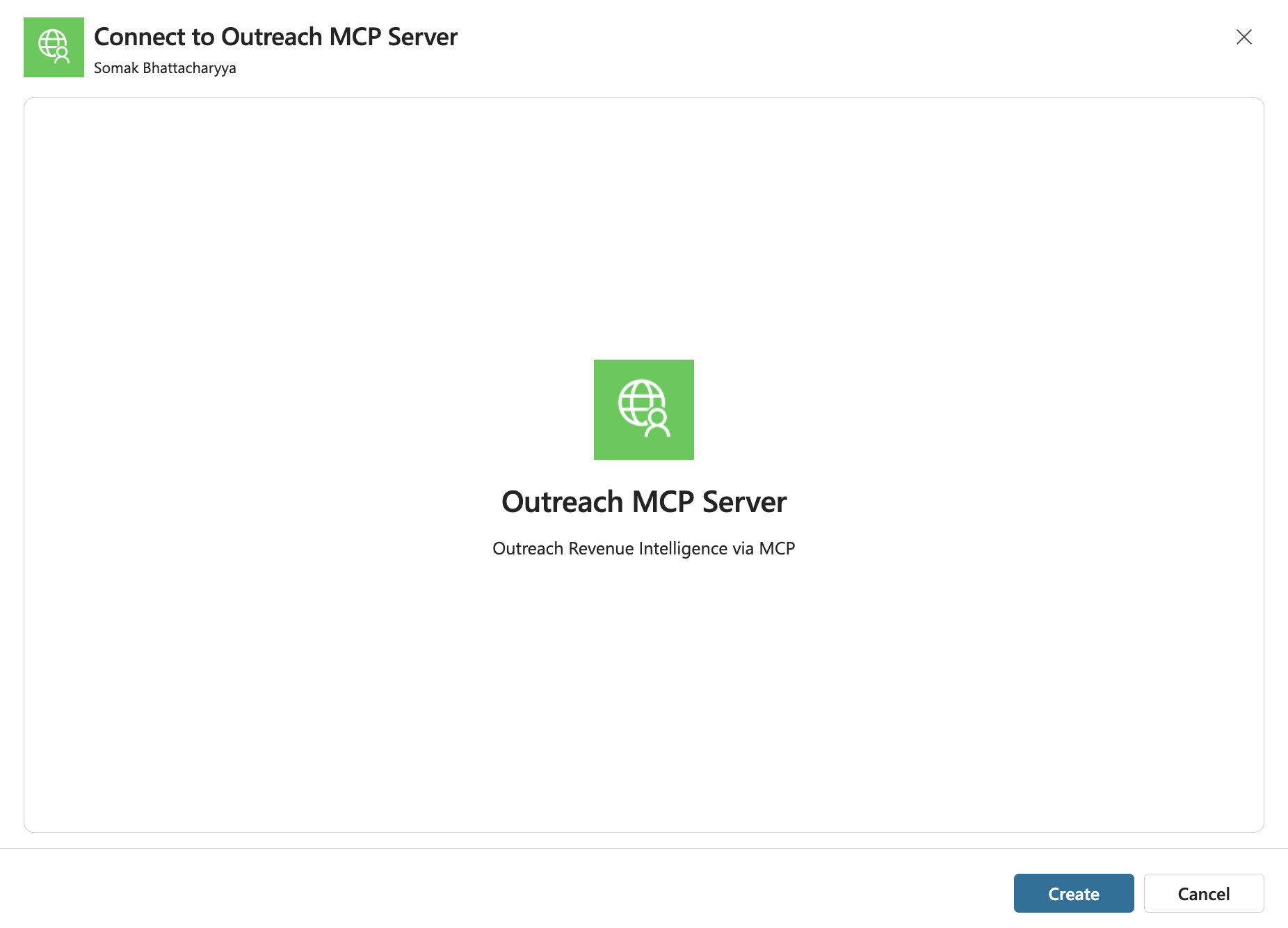
Sign in if prompted > Authorize Copilot: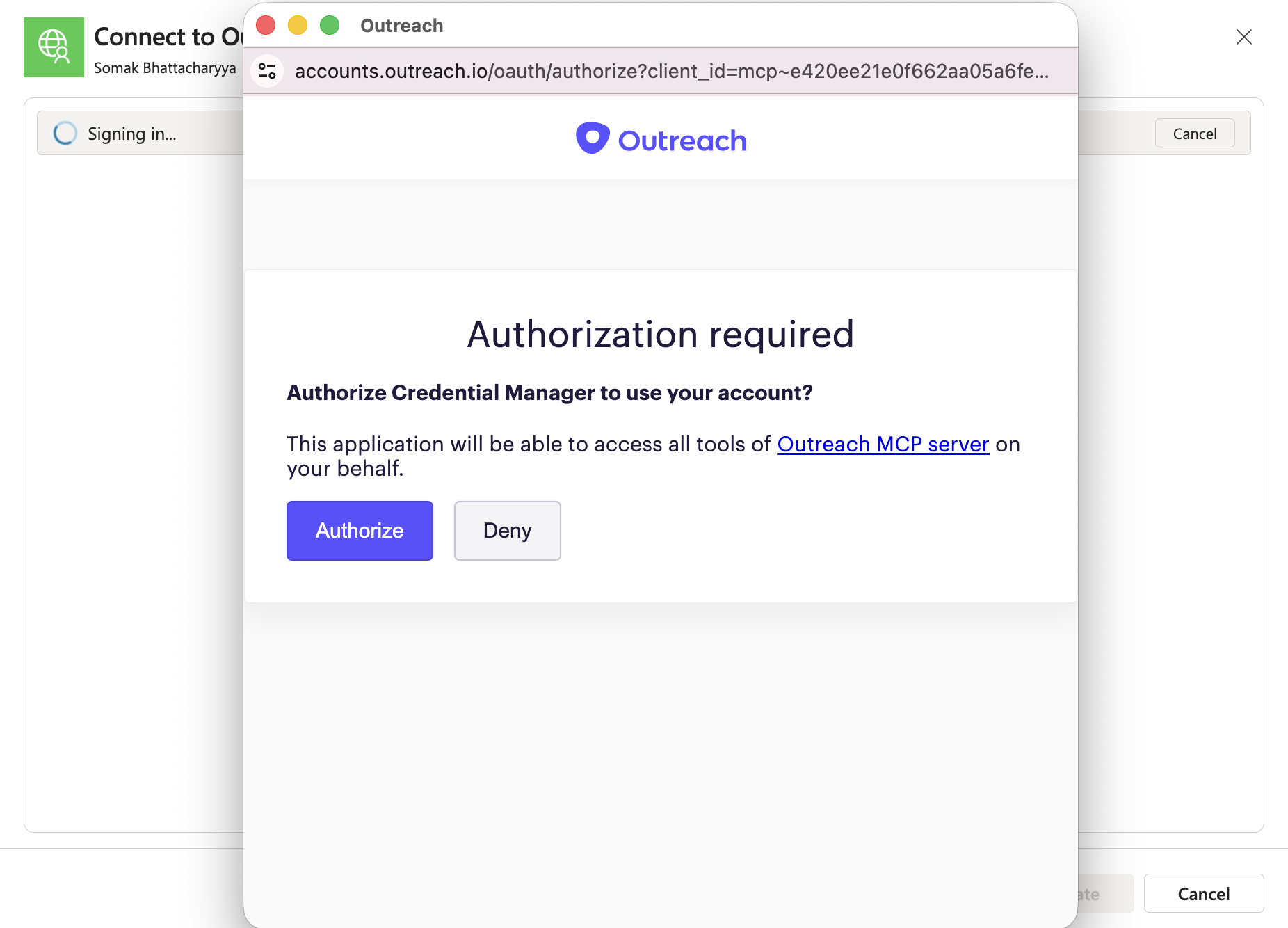
Your connection should now show a green checkmark to confirm that you have successfully connected your Agent to Outreach MCP Server. Finally, hit add and configure to finish setting up the connector: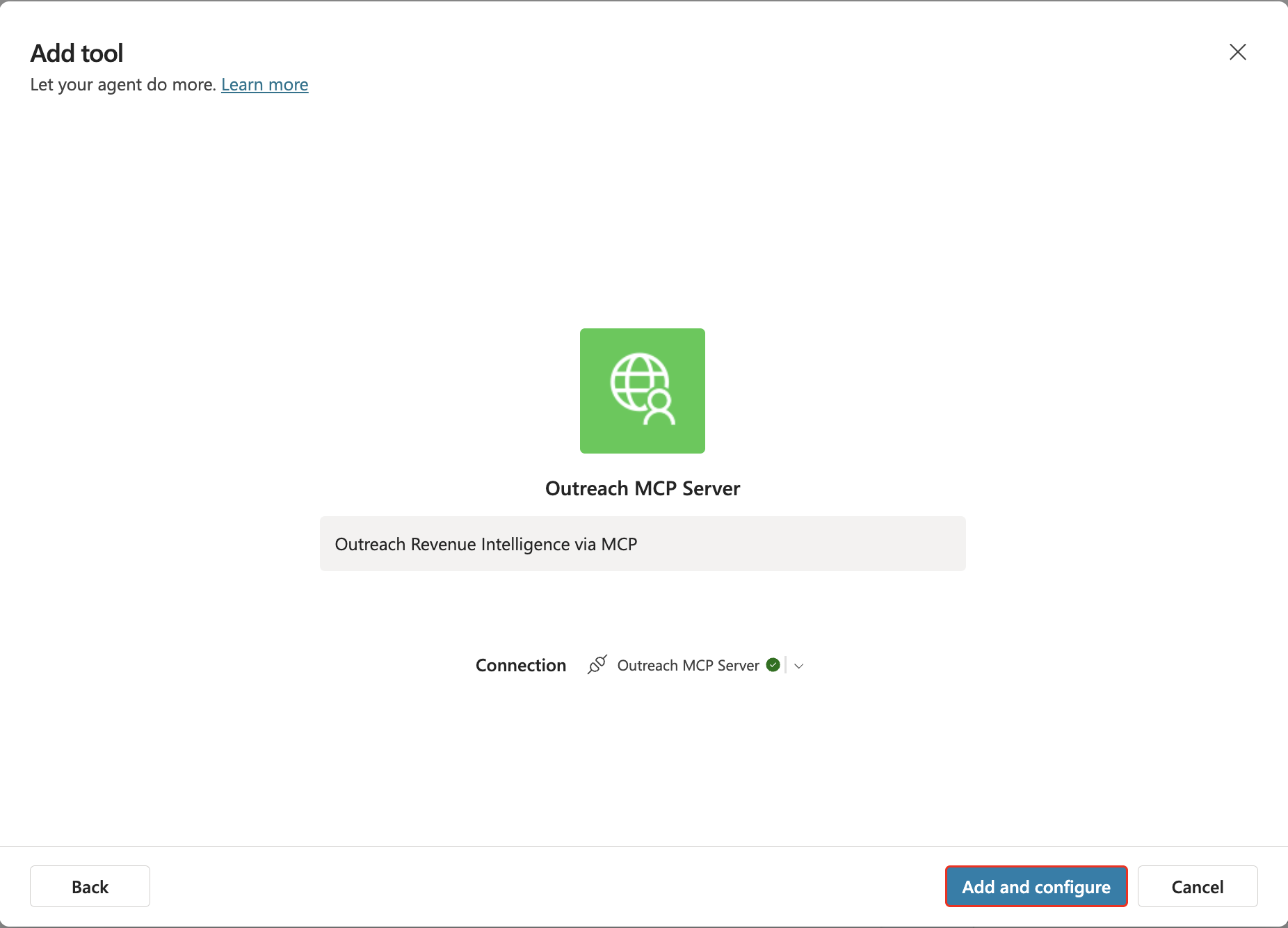
Optionally, you can configure individual tools provided by Outreach. Outreach recommends you keep all tools active for best outcomes.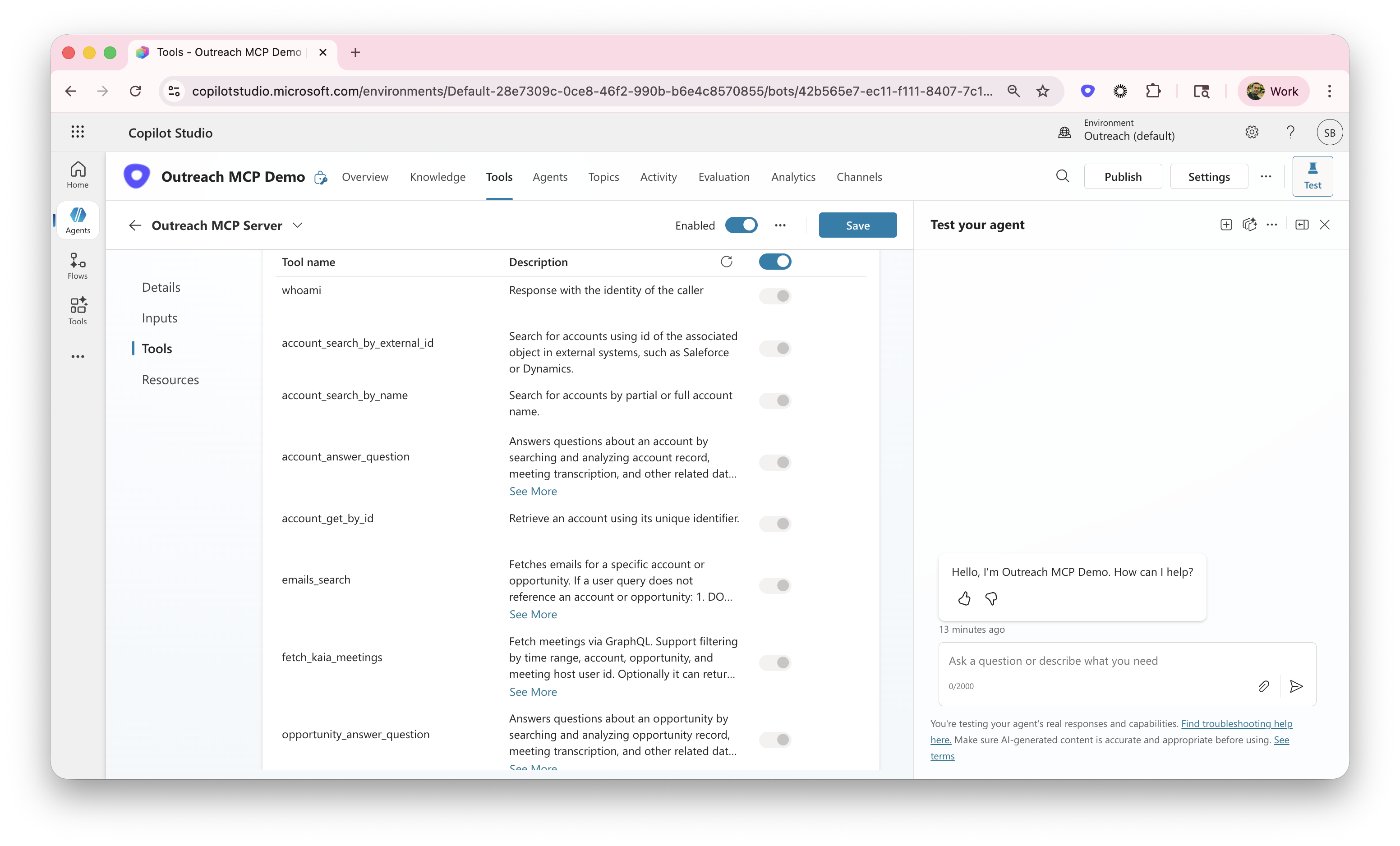
Testing using Copilot Studio
To make sure your Agent is fully set up, try a few queries relevant to your business! For example - "Help me prepare for my next call with AKG" (Replace with an appropriate Account, Opportunity or Prospect record applicable to your business)
You can observe the agent reason, call Outreach MCP Tools as required, and generate a curated response: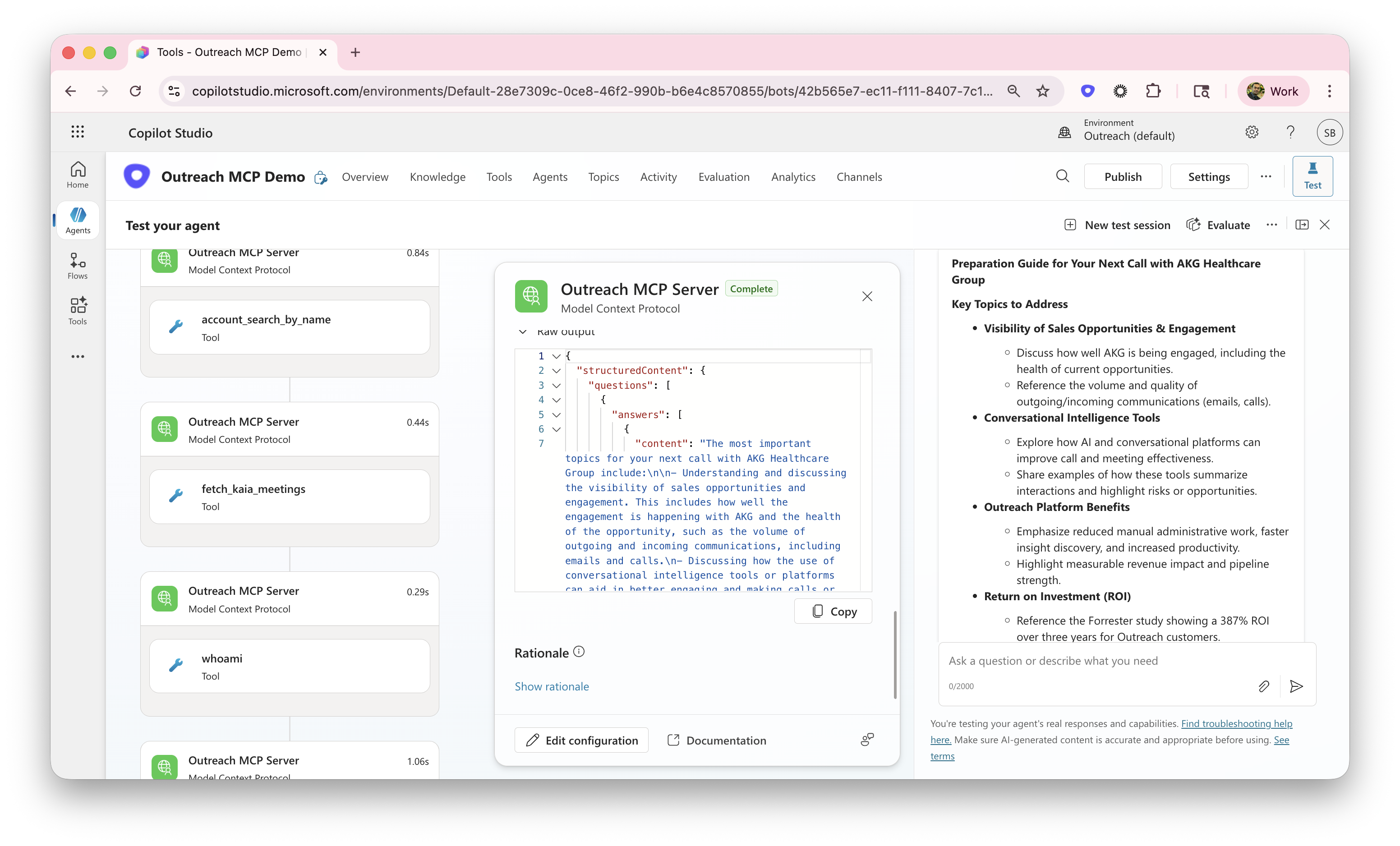 Adding your Agent to Channels
Microsoft Copilot Studio allows you to publish your Agents to a variety of supported channels. Make sure you are publishing your Agents appropriately to be available in your daily workflows and tools - like Microsoft Teams, Dynamics, SharePoint and so on.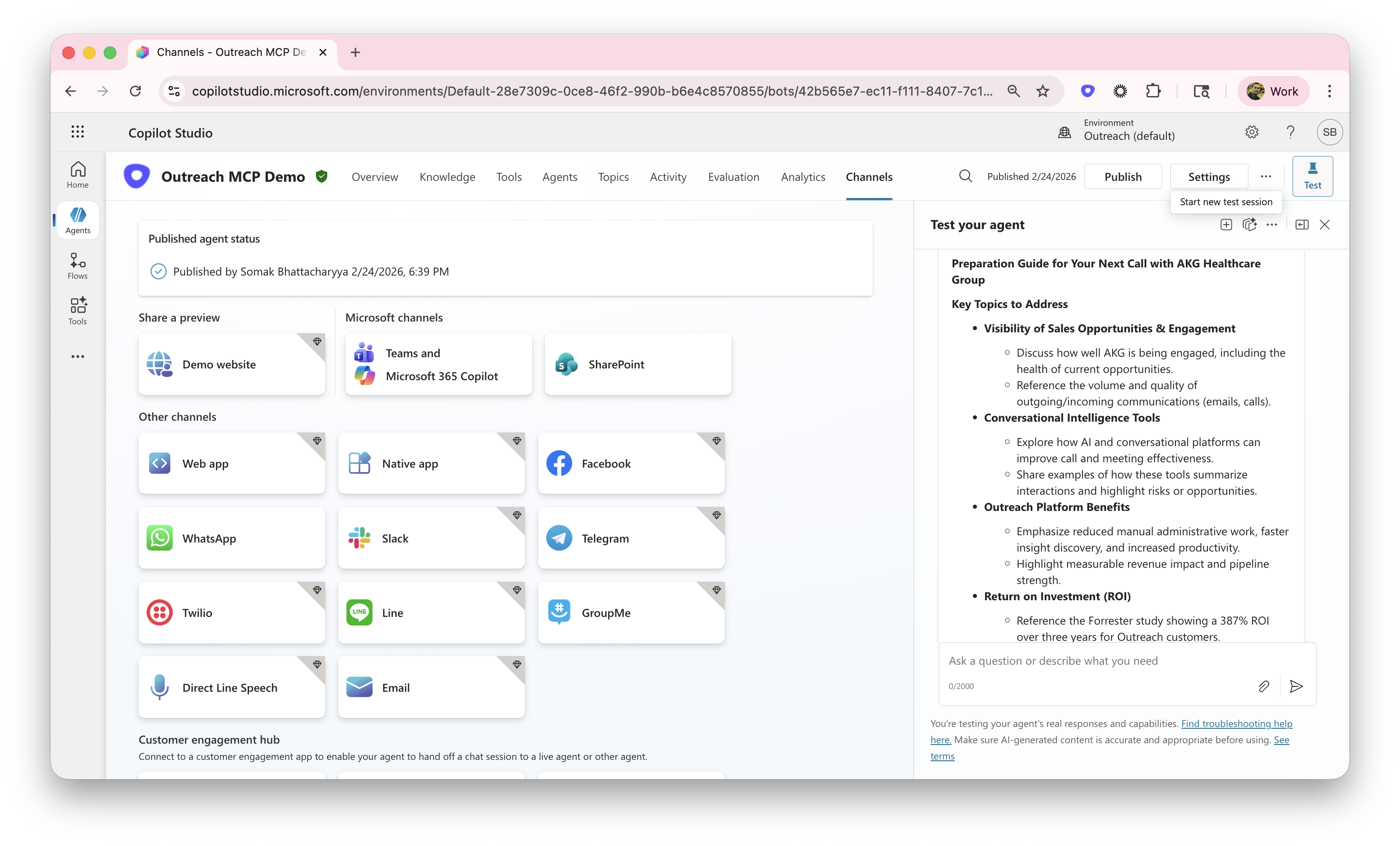
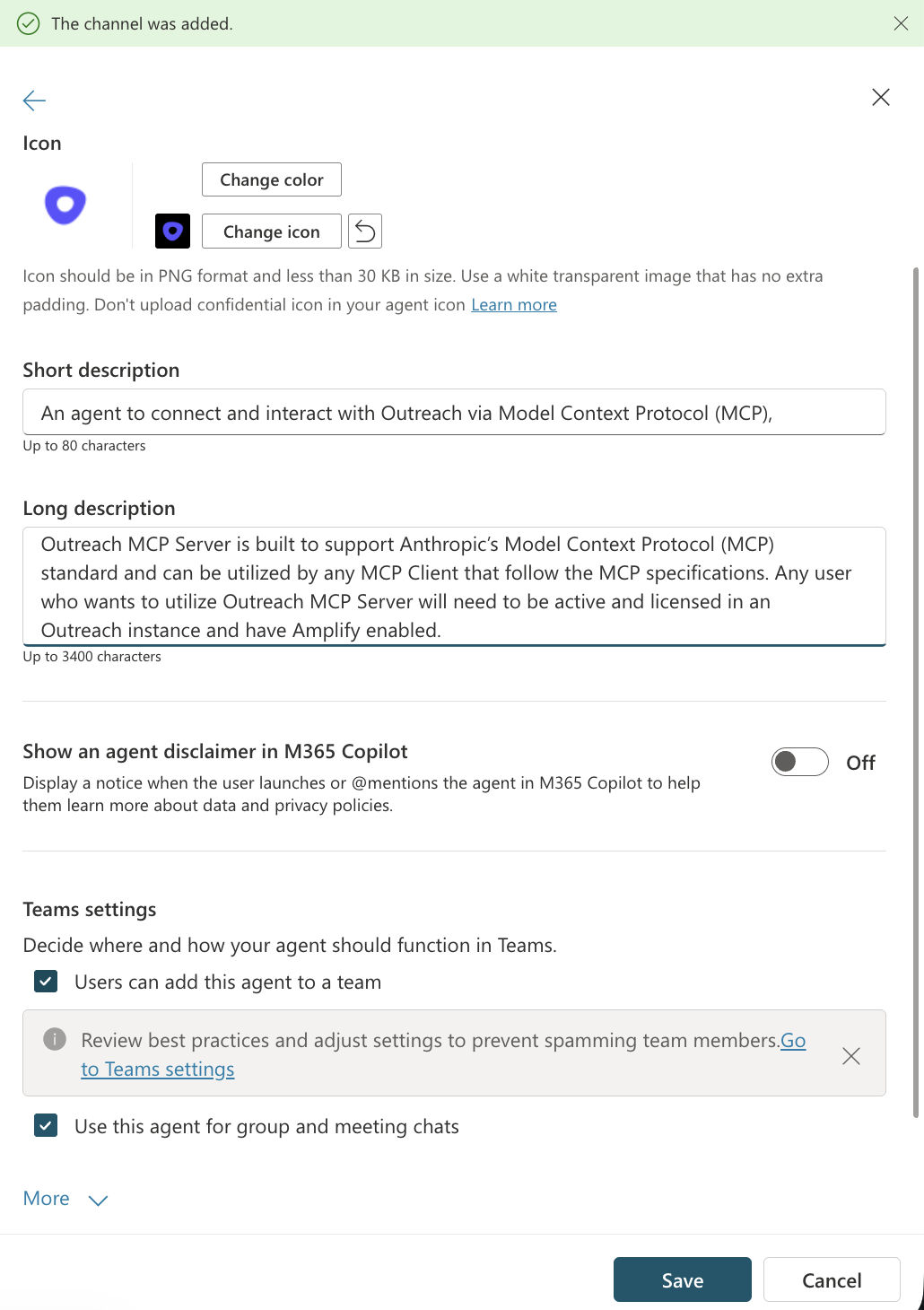
Most common Channels will include Microsoft Teams: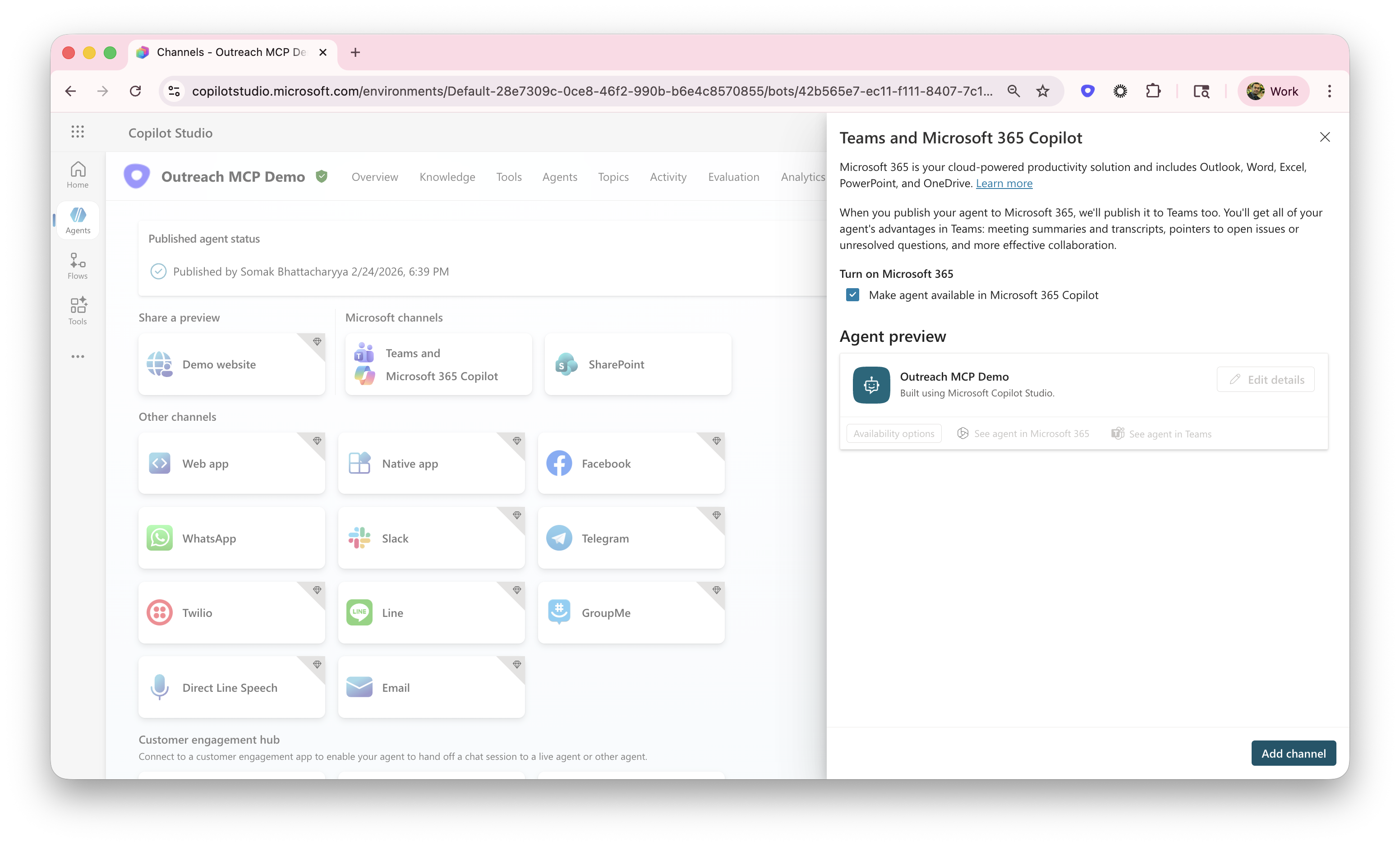 Make sure you are providing details, icons etc. to be easily understandable by your employees and provide appropriate permissions:
Publish
Once you are satisfied, go ahead and publish your Agent. At this point you can go to any Copilot Agents enabled Microsoft or non-Microsoft Apps and use Outreach MCP server.
Troubleshooting
If you are seeing Authentication failures, such as below, it could mean your Studio is not connected to Outreach actively. You might need to sign in again by following the 'Open connection manager' link: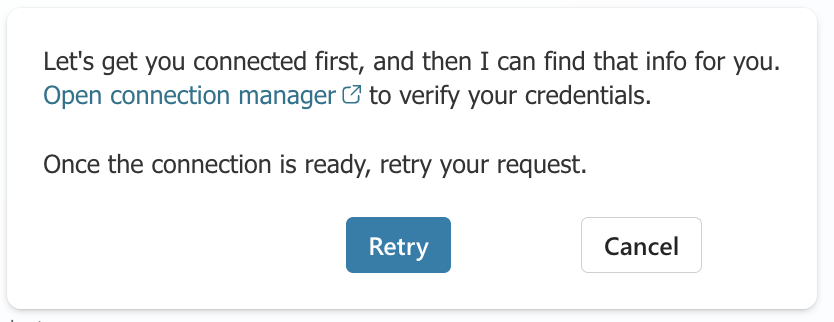
Was this article helpful?
That’s Great!
Thank you for your feedback
Sorry! We couldn't be helpful
Thank you for your feedback
Feedback sent
We appreciate your effort and will try to fix the article