Objective
Initiate help request conversations with our live Support team from within the Outreach web application via our Support AI Assistant chatbot. If our chatbot is unable to help you find an answer or solution, easily reach a live Technical Support Engineer on demand, which will create a ticket you can then come back to and continue interacting on as needed. Learn more below!
Note: Live Outreach Technical Support chat is only available within the Outreach web application at this time. It cannot be accessed via the chatbot in our Support Portal.
| *** IMPORTANT *** Please do not include any non-essential personal identifying information (PII), or any protected health information (PHI) in any communications you send to us. Although data in the system is encrypted, it is not intended to store or process any PII or PHI information. Please keep in mind that information shared within these tickets is triaged and routed to the appropriate parties. There is a possibility that information you include in a ticket may be read by parties in addition to the person to whom it is addressed. |
Applies To
- Outreach Customers with the Plus or Enterprise Support offering
- Users for whose Profile the Live chat support option is enabled
Procedures
Open the Support AI Assistant
- Access the Outreach web app.
- At the top right, click the Support (question mark) icon to open the Resource Center.
- From the dropdown, click Chat with Outreach Support.
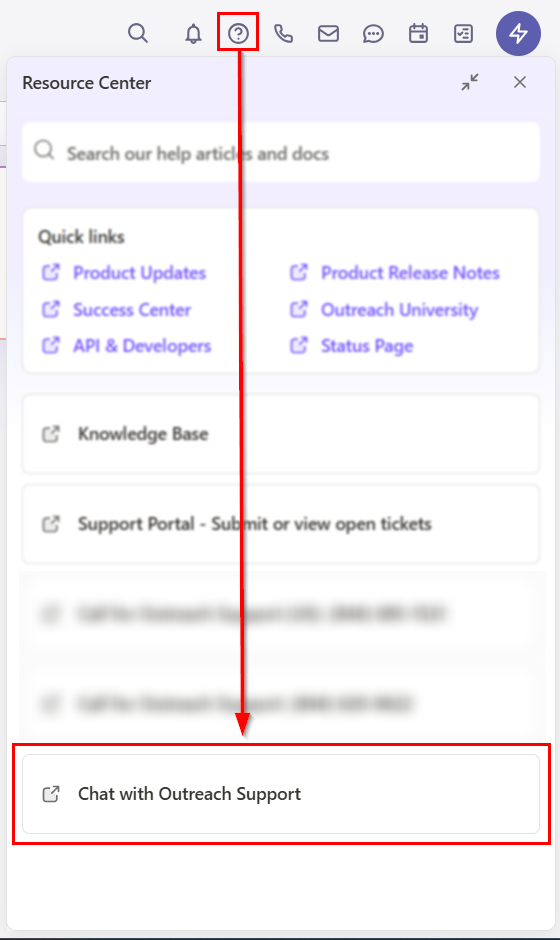 The Support Widget will open in the bottom right corner of the page.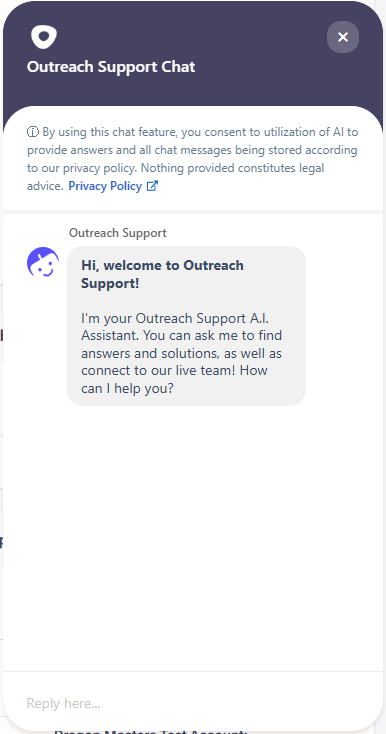
Note: Clicking the ✖ in the upper right of the widget will minimize it offscreen. Simply restore it from the Resource center dropdown when needed.
Issues launching the Resource Center?If the Resource Center panel does not load when clicking the Support (?) icon, please try the following:
|
Start a Live Chat Conversation
Note: Live support chat can only be connected during normal live chat hours for your support plan.
- In the open widget, post a question or issue directly into the message field for our Support A.I. Assistant to help with.
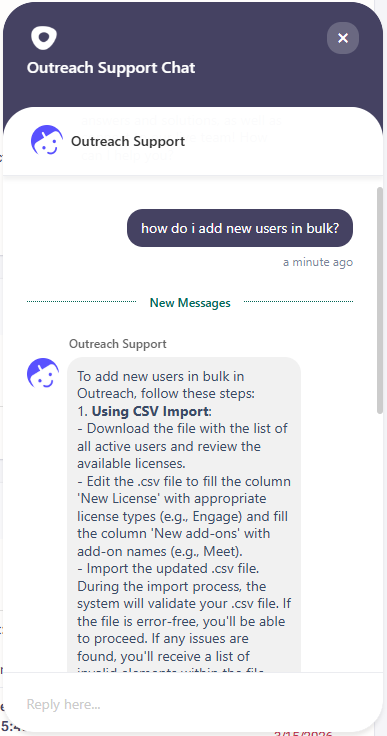
- To connect with our live team, simply use plain language to indicate that.
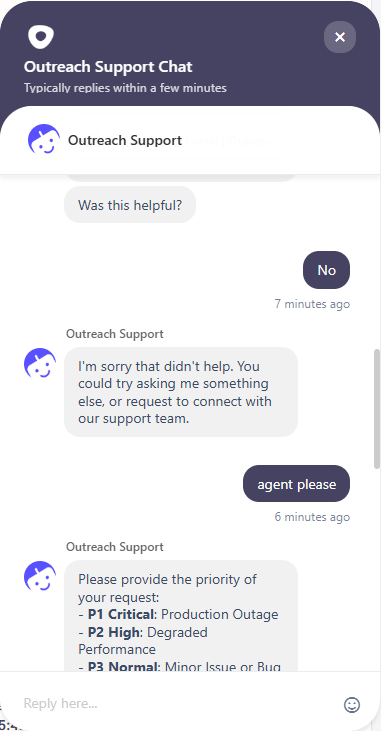
- To ensure the best skilled team is assigned, when prompted, indicate the priority rating of your issue, as well as the Outreach product area most related to your issue. A new ticket will be created and the conversation assigned to the next available agent.
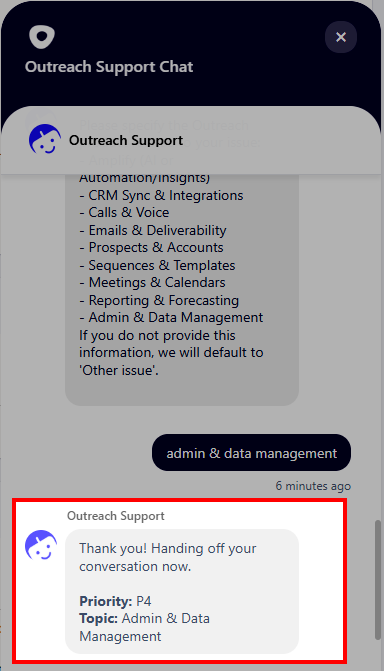 Please wait to be connected and continue with the assigned agent.
Note: Outside of your plan's available live chat schedule, you will instead be directed to the Support Portal Requests page, where you can complete and submit a support ticket for further help from our team.
Concluding Your Chat Conversation
You can check out all transcripts via the ticket in your Support Requests page in the Support Portal or via email. The latest updates will be available in the Support Portal.
If you'd like to start a new chat or close your ticket at any point, you can click Close issue on that ticket in the Portal.
If you need to leave the conversation and/or additional research is required from our team, our support engineer will end the chat and create a new ticket on your behalf. You will see that new ticket in the portal as well as receive an email with next steps.
If you have gone inactive in the conversation, the new ticket will be created for you after 20 minutes of inactivity.
Once your chat is concluded, you will be able to interact with our bot as needed for further solutions, or optionally begin a new live support chat conversation as described above.
Additional Information
Best Practices for Contacting Outreach Technical Support
Outreach Technical Support Offerings
Configuring User Access to Outreach Support in Profile Settings
Was this article helpful?
That’s Great!
Thank you for your feedback
Sorry! We couldn't be helpful
Thank you for your feedback
Feedback sent
We appreciate your effort and will try to fix the article