Resource Overview
This resource is intended to enable Outreach administrators to implement more structured governance in their Outreach instance through creation of ‘core’ user Profiles.
Profiles govern what features individuals are able to access in Outreach. Configuring and assigning profiles in Outreach helps to keep reps focused and prevent unwanted changes that can impact the organization.
Building the 'Core' Profiles
Profiles are created by Outreach Admins. Outreach has three default profile settings: Admin, Default, and Leadership Users (Leadership being introduced on April 17th, 2019). Admins have access and permission to all parts of the Outreach platform.
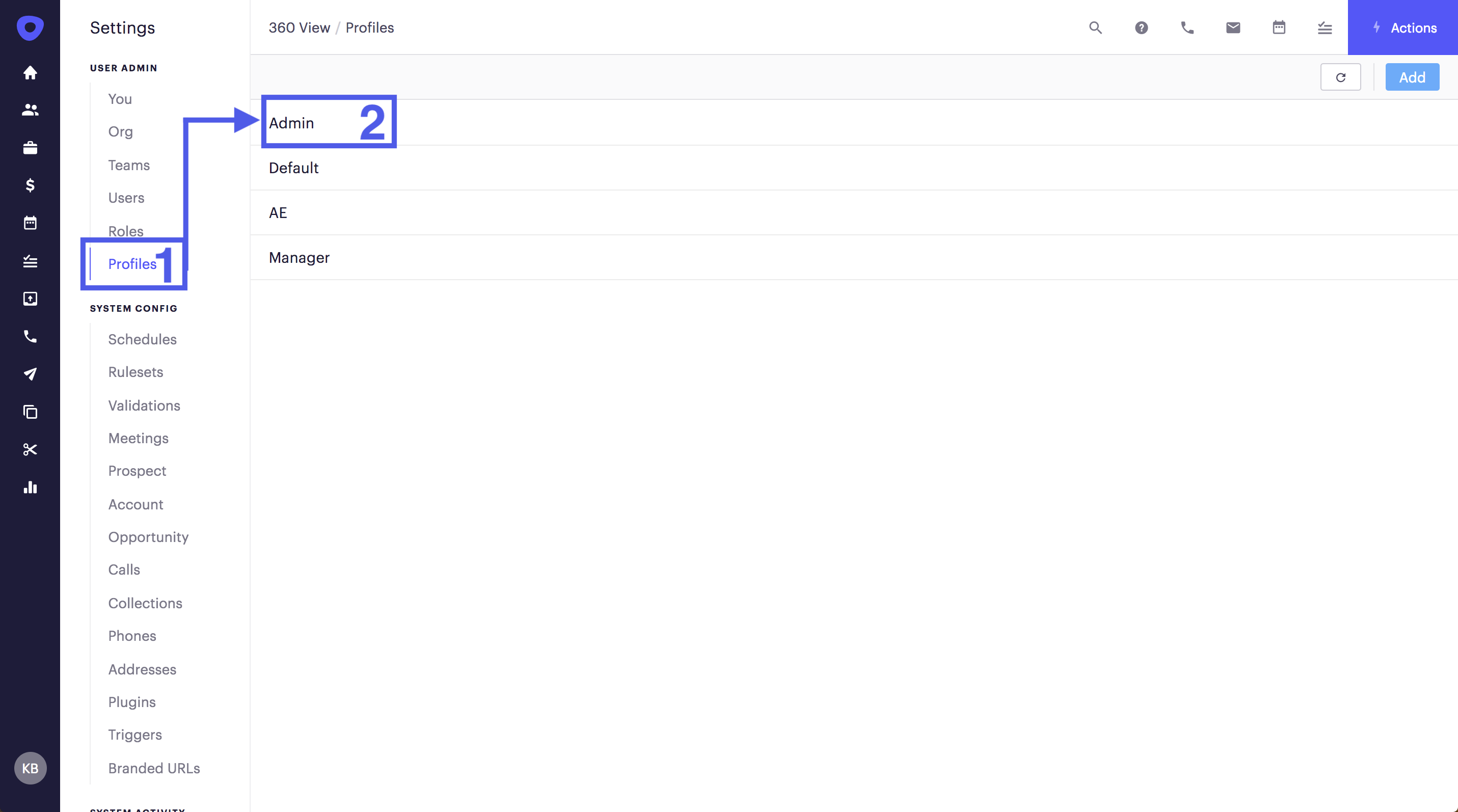
Profiles will all be viewed and managed from Settings > Profiles. Follow the guide below for instructions on setting up the following Profiles: Default (SDR), AE, and Leadership.
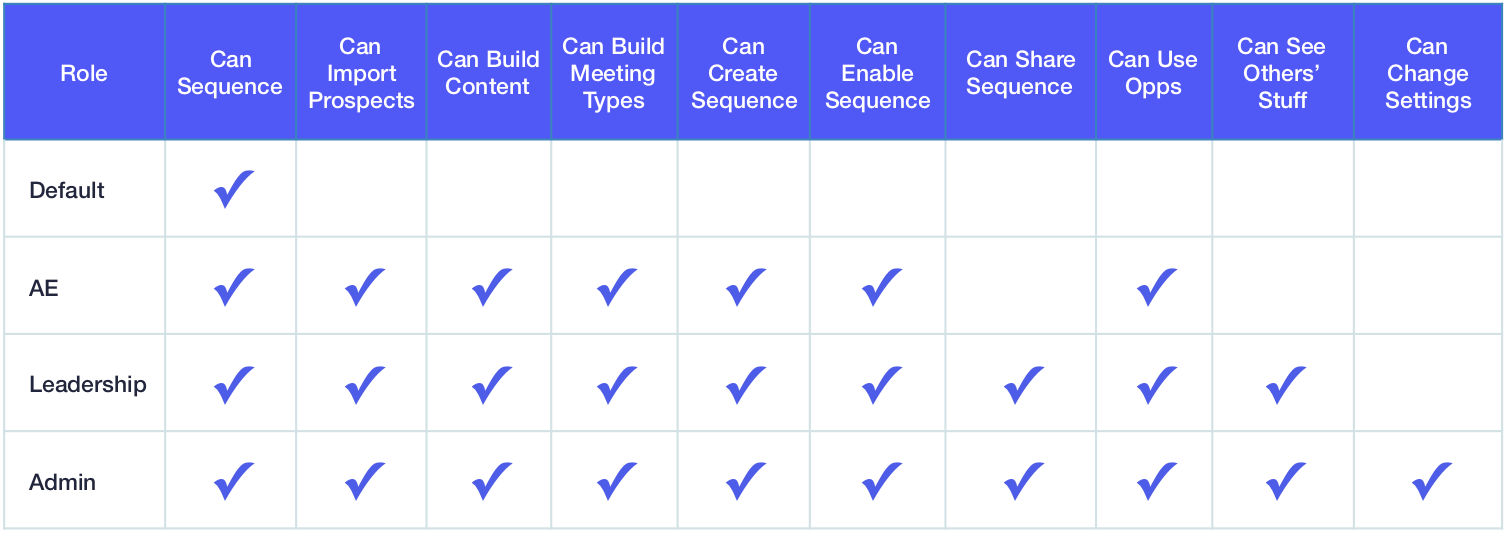
Note: These ‘core’ Profiles will be broken down by user role responsibilities. This resource is intended to focus solely on building the ‘core’ Profile structure - not to provide instruction on applying Profiles or best practices. For guidance on applying Profiles to users and best practices, please see the following: Admin Functionality
1. Build Default (SDR) Profile for Limited Scope of Focus
Start with the existing Default Profile that comes with Outreach out-of-the-box. This profile is mostly configured for an SDR and will require only a few changes. This profile cannot be renamed and will be applied to every new user added to Outreach unless otherwise specified.
The Default (SDR) profile is to be used by reps who need to have a simple, focused workflow. Having a profile such as this SDR profile will greatly limit what the user can see and do in Outreach. Primarily, Default users will be able to see accounts, execute tasks, and have the ability to sequence prospects.
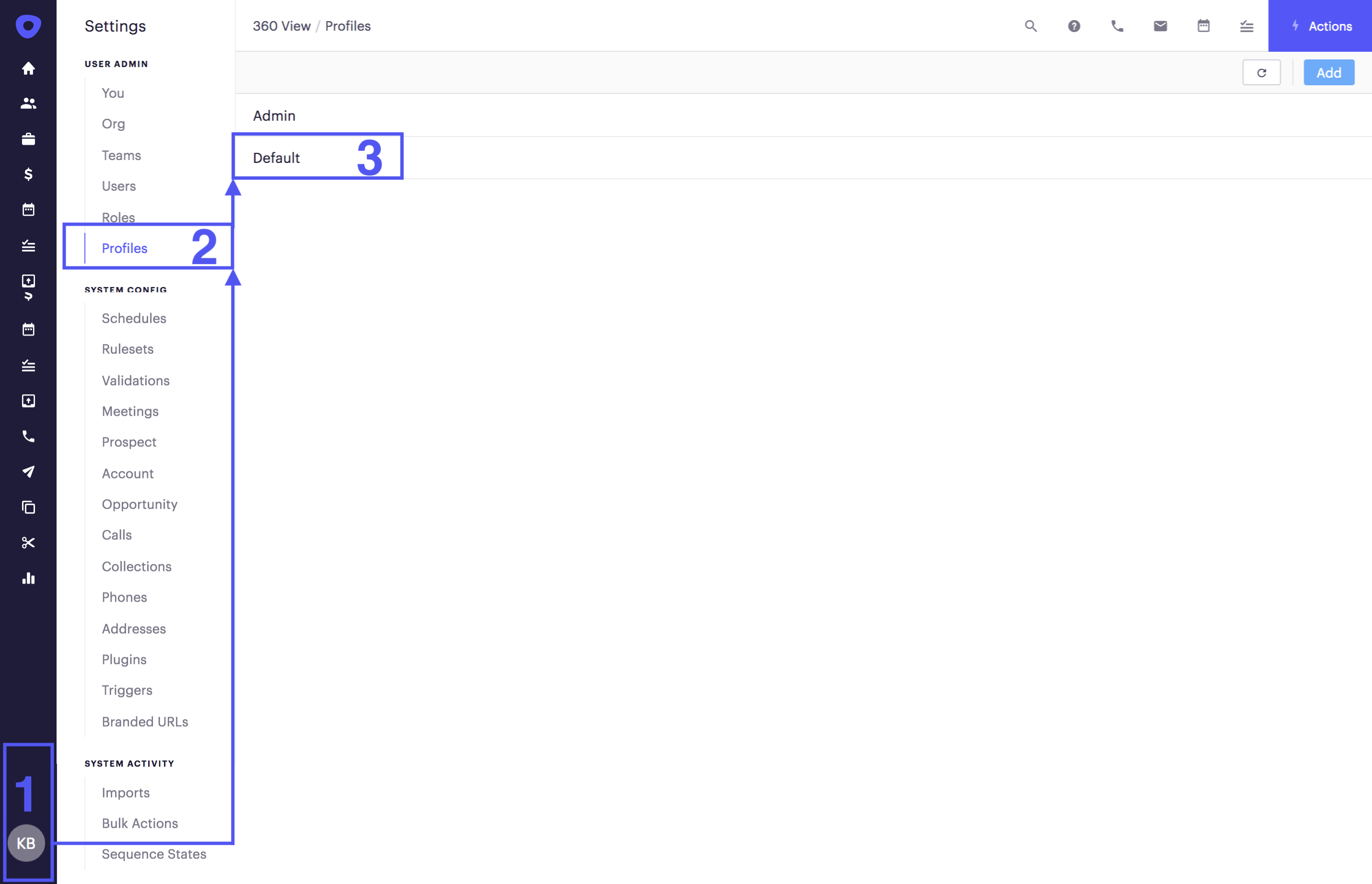
1.1 From the 360 View, navigate to the left-hand sidebar and click on the initials icon in the bottom corner.
1.2 Click on Profiles on the the left-hand menu to be taken to the Profiles overview page.
1.3 Click on the Default Profile in the list.
1.4 Begin making changes to the user permissions as detailed in the section below.
1.5 Click the Save button in the top right-hand corner.
2. Build AE Profile for Ability to Manage Opportunities
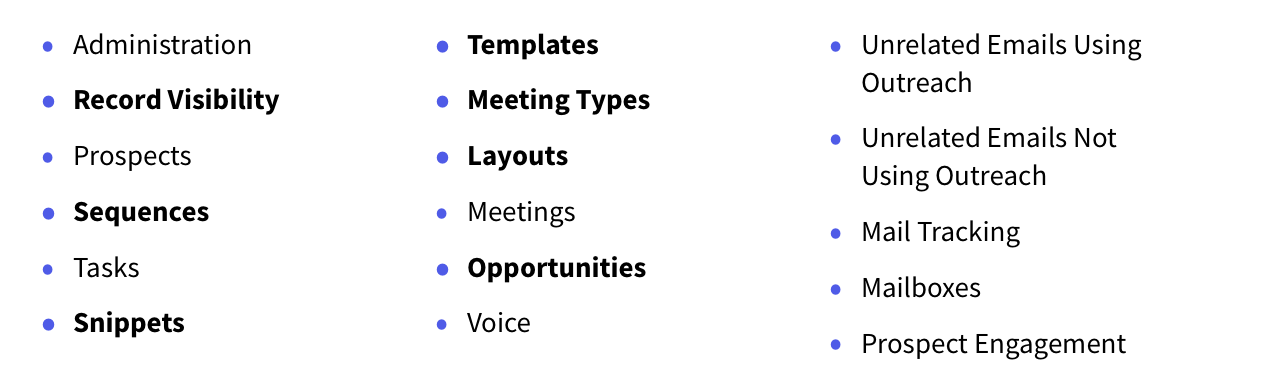
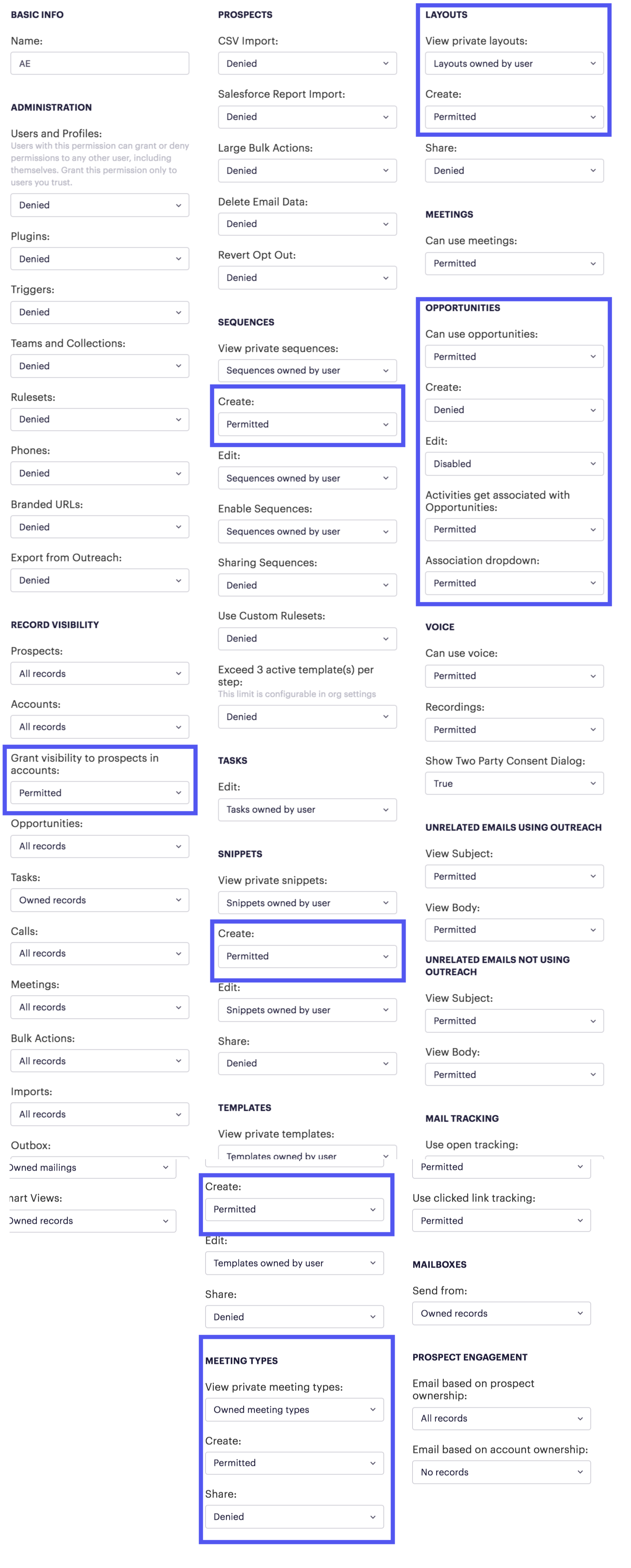
AEs have slightly more access than SDRs do. There’s a few permissions that need to be changed for AEs, primarily the permissions around Opportunities and managing content.
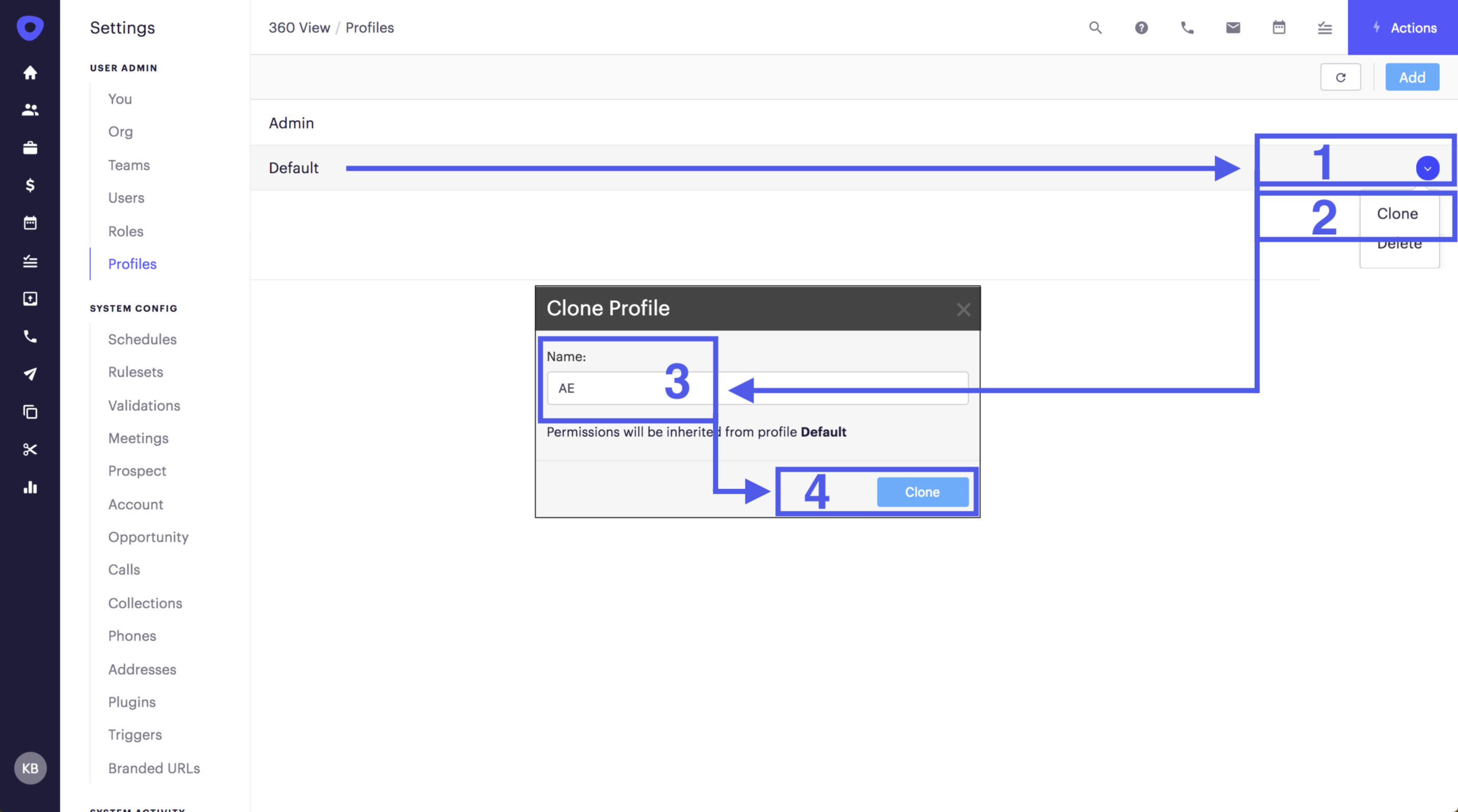
2.1 From the 360 View, navigate to the left-hand sidebar and click on the initials icon in the bottom corner.
2.2 Click on Profiles on the the left-hand menu to be taken to the Profiles overview page.
2.3 Find the Default Profile in the list and hover the mouse cursor over it.
2.4 Click the dropdown carrot on the right side of that row.
2.5 Click Clone.
2.6 Rename the Profile to “AE.”
2.7 Set AE-Specific permissions, as detailed in the section below.
2.8 Click the Save button in the top right-hand corner.
3. Build Leadership Profile for Team-Level Permissions
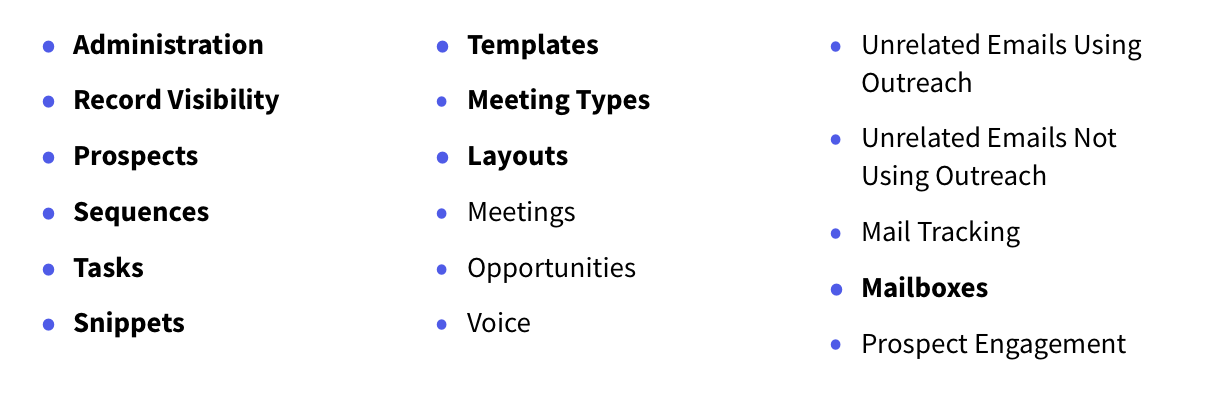
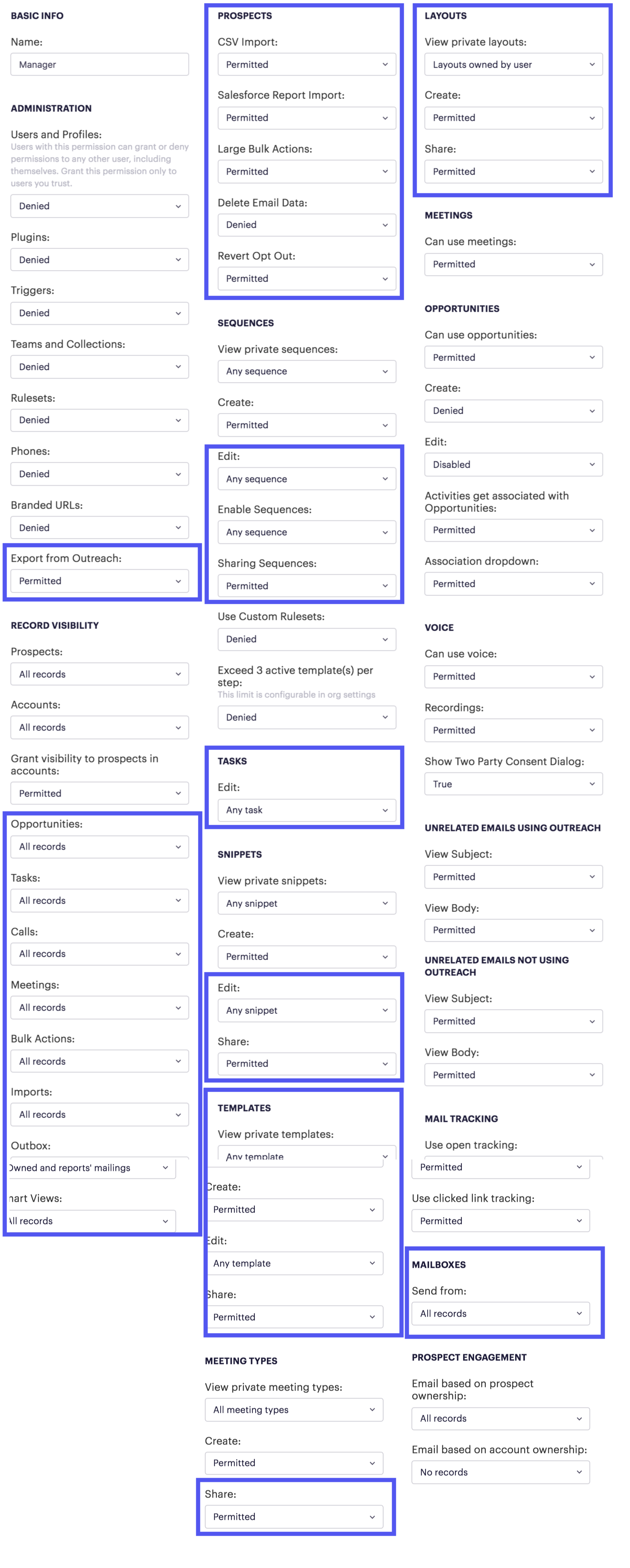
Leadership users are given the permissions to create content, see team records, and import prospects. They do not have the ability to change settings that can have an organization-wide impact.
NOTE: Depending on when the org was created, Admins may or may not need to create the Leadership Profile. Orgs created on or after April 17th, 2019 will come with a Leadership Profile out-of-the-box. It is still recommended that Admins review Leadership Profile settings.
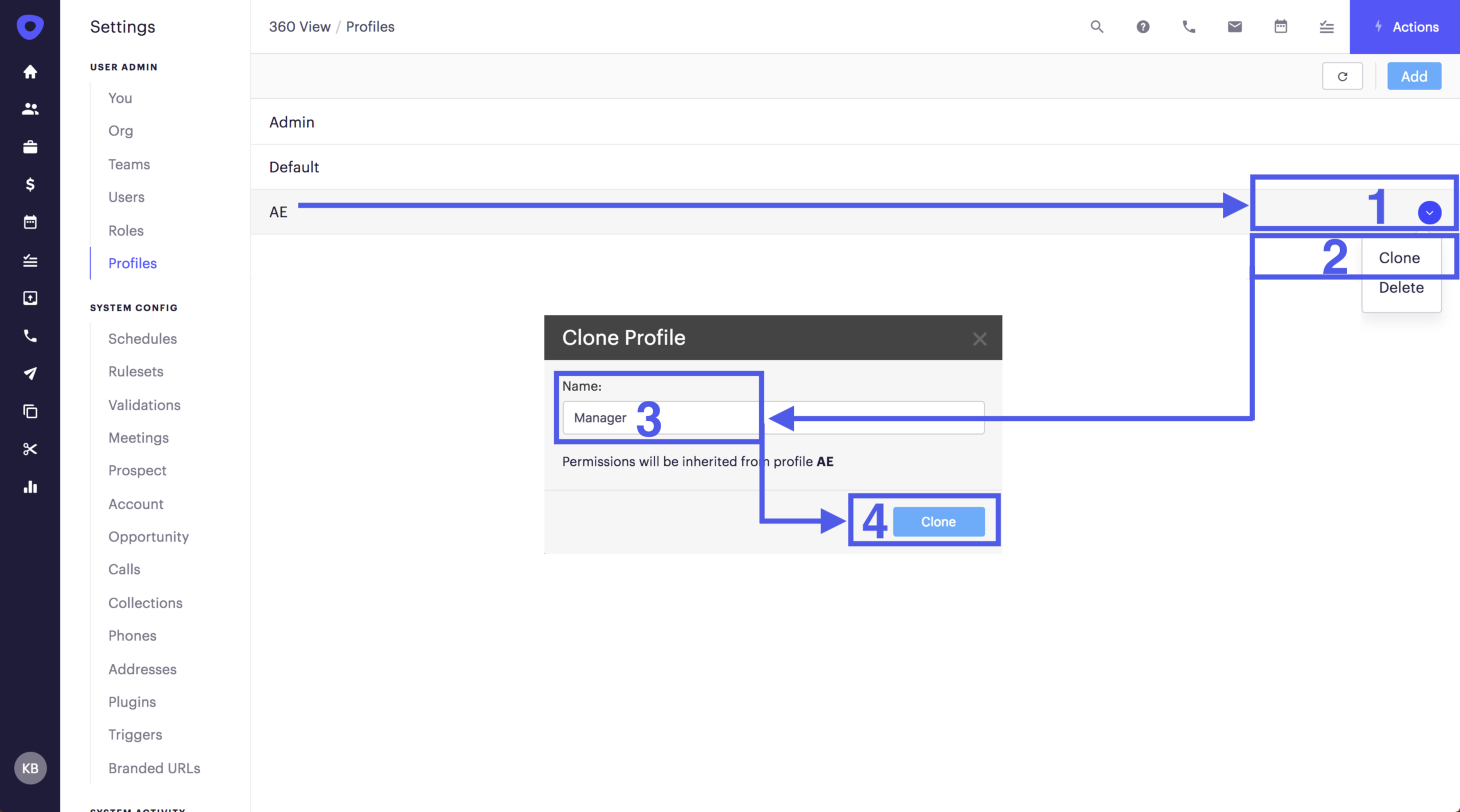
3.1 From the 360 View, navigate to the left-hand sidebar and click on the initials icon in the bottom corner.
3.2 Click on Profiles on the the left-hand menu to be taken to the Profiles overview page.
3.3 Find the AE Profile in the list and hover the mouse cursor over it.
3.4 Click the dropdown carrot on the right side of that row.
3.5 Click Clone.
3.6 Rename the Profile to “Leadership.”
3.7 Set Leadership-Specific permissions, as detailed in the section below.
3.8 Click the Save button in the top right-hand corner.
4. Review Admin Profile for Org-Wide Access
Admins have open permissions to do anything and everything in the platform settings. They can create roles which allow them to apply permissions to others, in order to control what they can see and do.
NOTE: It is critical to limit who has Admin access. All Admins have the power to change plugin settings, users, prospect messaging, and even billing information. Admin rights should not be given to everyone that requests it.
4.1 From the 360 View, navigate to the left-hand sidebar and click on the initials icon in the bottom corner.
4.2 Click on Profiles on the the left-hand menu to be taken to the Profiles overview page.
4.3 Click on the Admin profile.
4.4 View the predetermined permission sections and dropdown options, as detailed in the section below.
Assigning Profiles to Users
To assign a Profile to a user, check out the article on Creating and Assigning Governance Profiles.
___________________________________________
Permissions to Change in Each Profile
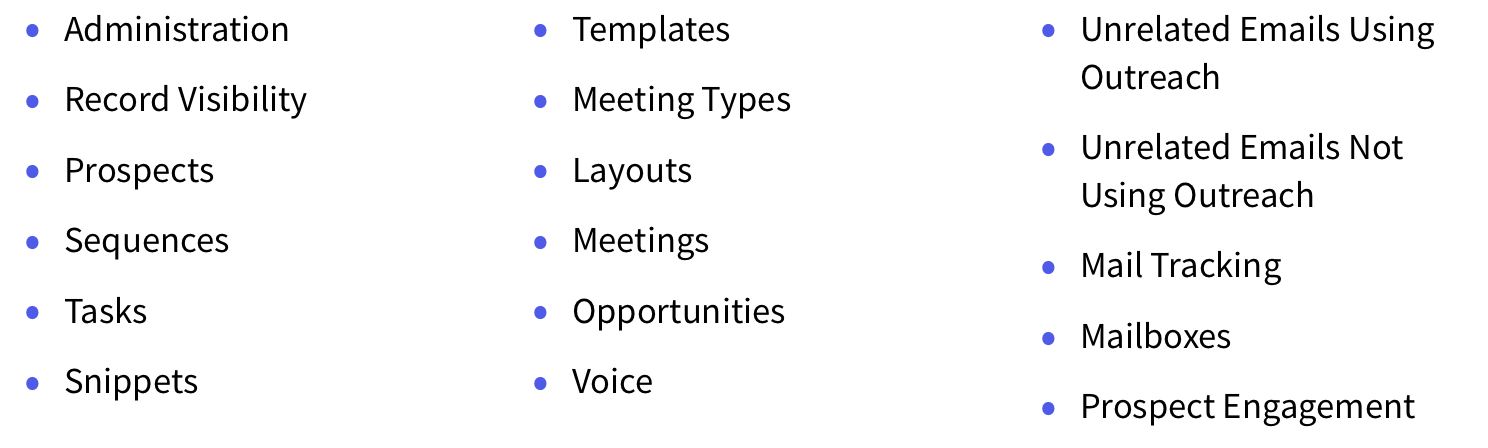
Profiles have the following permission sections:
How this Profile Build Guide Works
On the Profile’s page, there will be a list of the above permissions. Follow the below guide to set permissions, for each area of the Outreach platform, per user profile.
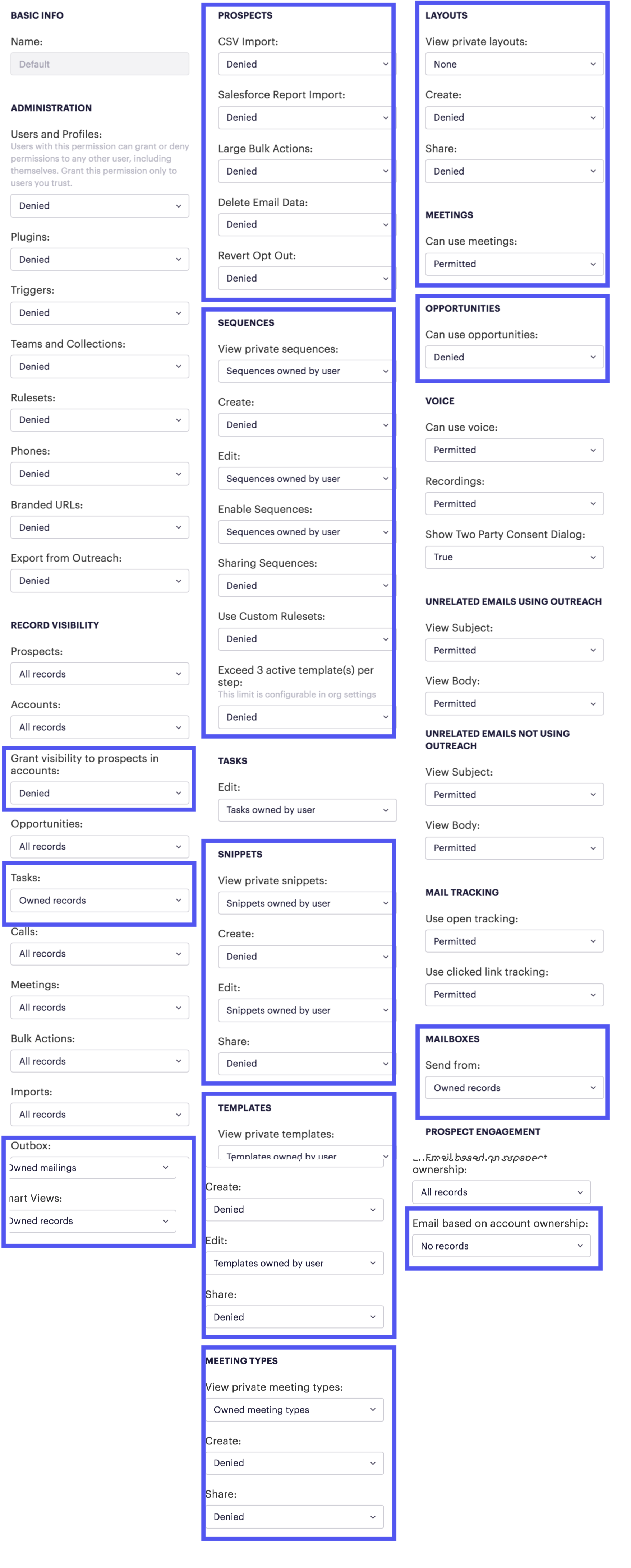
1. Building the SDR (Default) Profile
Permission sections that will need to be edited:
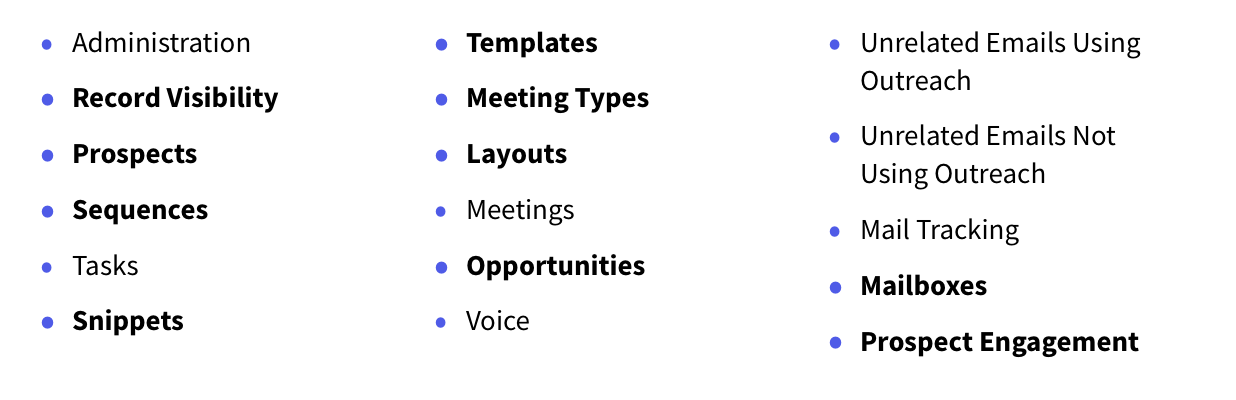
Permission Edit Guide:
2. Building the AE Profile
Permission sections that will need to be edited:
Permission Edit Guide:
3. Building the Leadership Profile
Permission sections that will need to be edited:
Permission Edit Guide:
4. Reviewing the Admin Profile
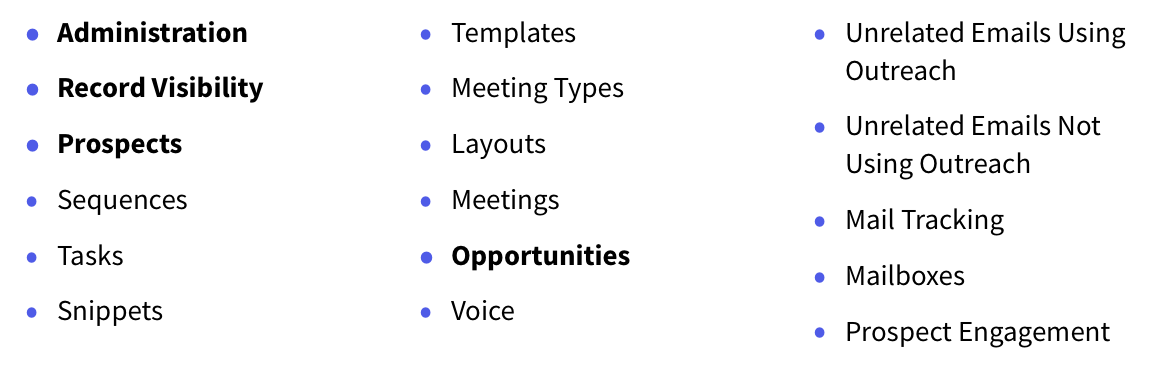
Permission sections that have notable differences:
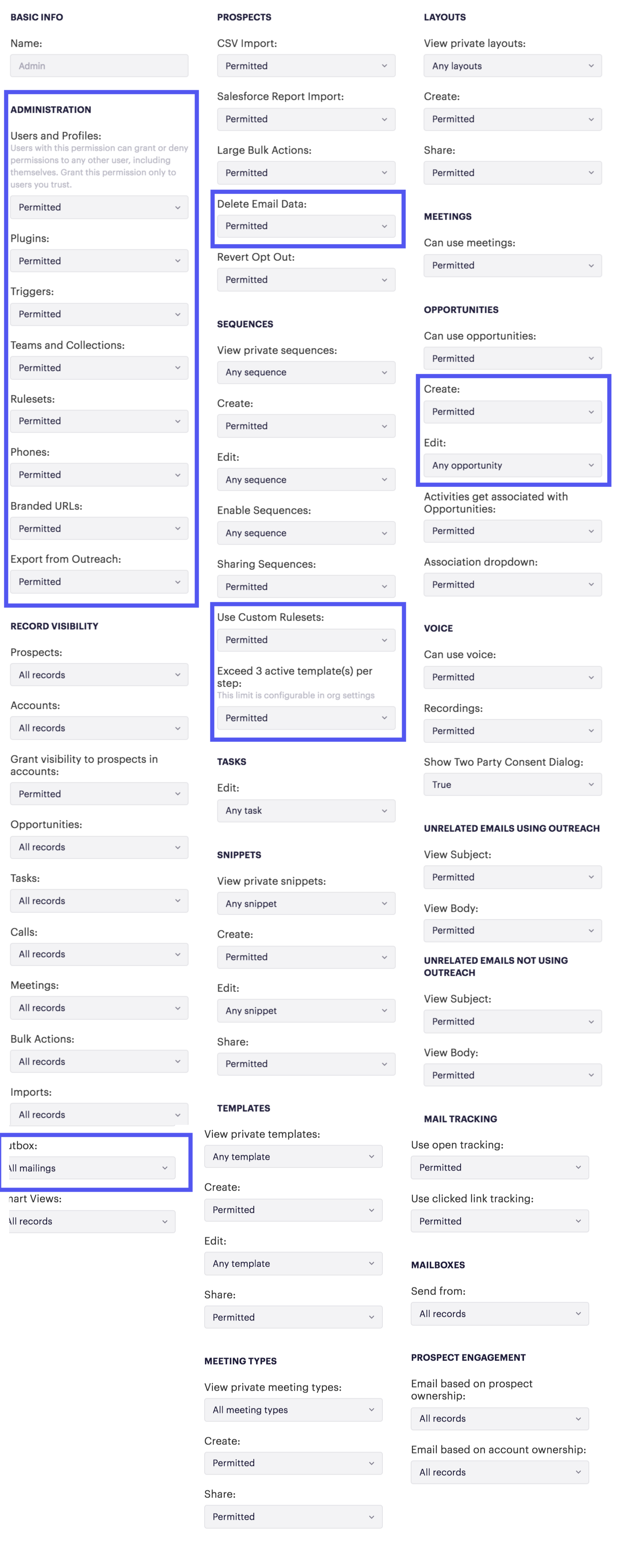
Permission Review:
Additional Resources for Profiles
- Admin Governance - Complete Resource Collection
- Understanding Governance Profile Settings
- Outreach Admin Access
- Creating and Assigning Governance Profiles
- Profile Settings for: Outreach Meetings
- Profile Settings for: Texting Governance
- Profile Settings for: Prospect Engagement
- Profile Settings for: Outreach Opportunities
Was this article helpful?
That’s Great!
Thank you for your feedback
Sorry! We couldn't be helpful
Thank you for your feedback
Feedback sent
We appreciate your effort and will try to fix the article