Objective
The purpose of this article is to provide information to Outreach users and admins in the configuration and use of Sequential Dialing in call tasks. Sequential Dialing provides increased efficiency to Outreach Users by greatly reducing the number of clicks to make a large amount of calls.
Applies To
- Outreach Voice
- Outreach Users
- Outreach Admins
Before You Begin
- Ensure you are setup to make calls using Outreach Voice
- Access to sequential dialing is controlled by admins via the user profile permission Use sequential dialing in call tasks
- This mode is only supported for call tasks
- Users also have an option to leave a manual voicemail when creating a disposition
Procedures
Sequential Dialing allows for the automation of call tasks. When entering Sequential Dialing mode in call tasks, the system will automatically dial the first number listed in in the prospect's profile. If no answer is detected, the call is hung up, logged, and the next phone number listed for the prospect is called automatically. When no additional prospect numbers remain, the task is completed and the system starts to call the prospect in the next call task. If a prospect answers, you are able to speak with them and log the call normally.
Configuring for Sequential Dialing
- Access the Outreach Platform.
- Click Administration > Calls.
- Click Dispositions.
- Select a disposition.
- Click Edit.
- Select Sequential dialing - no voicemail left.
- Click Save.
It is recommended to also assign a default all disposition to the call states "Busy" and "Failed" as well so that these call outcomes don't pause Sequential Dialing.
Activating Sequential Dialing
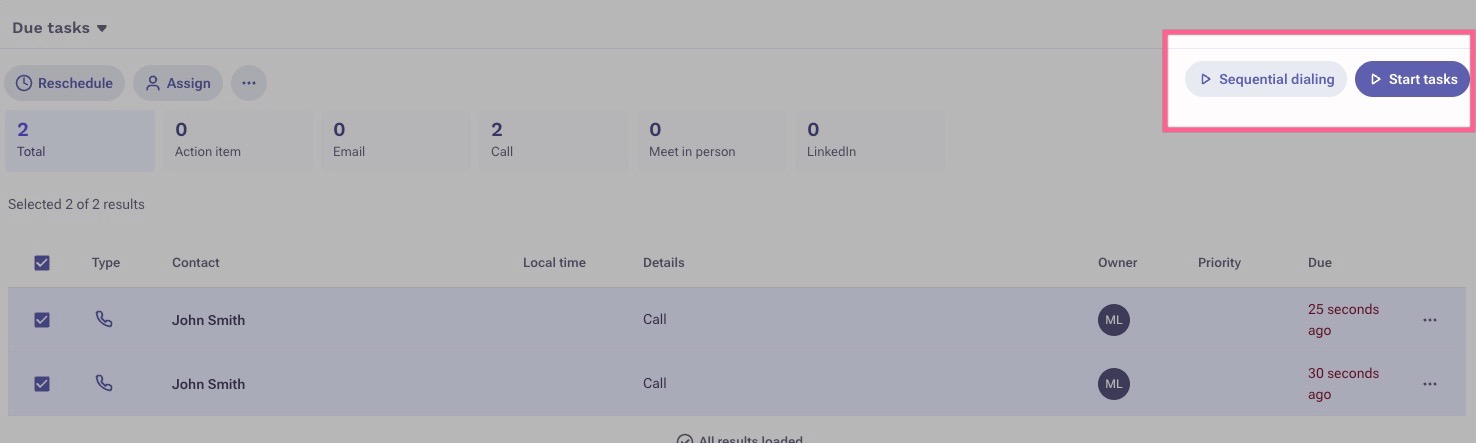
Sequential dialing can be accessed from 2 places - your home page, or your task list view. When you begin to select tasks to take action on, you will see the Start sequential dialing button next to Start tasks.
Note: The sequential dialing button will only become active once 2 or more call tasks are selected.
- Log in to Outreach.
- Select at least two call tasks.
- Select Start sequential dialing. If the selection includes tasks of other types, they will be filtered out from your task flow once the button is clicked as sequential dialing only supports call tasks.
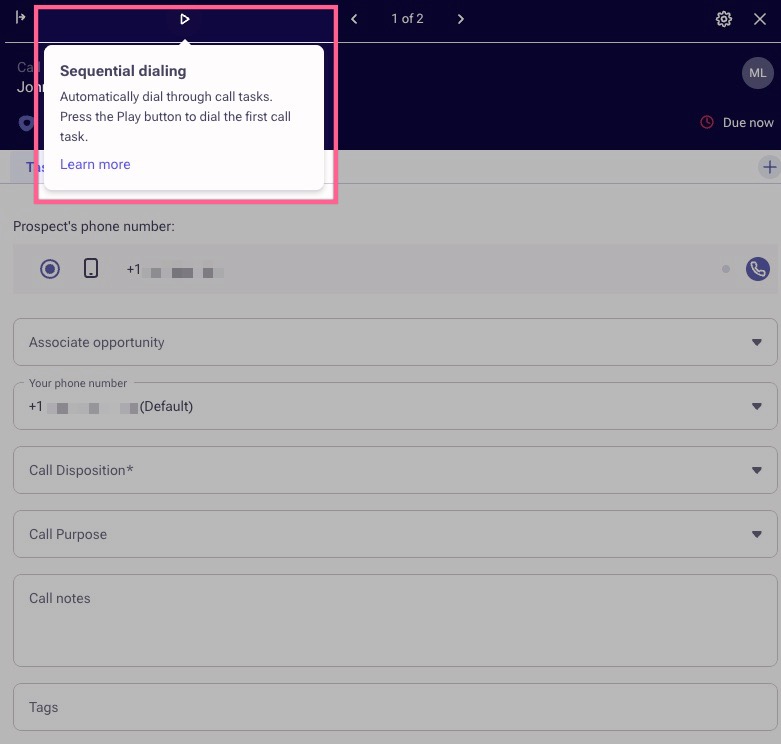
- Click the play icon to begin sequential dialing.
- Click the play icon again to end sequential dialing.
If a prospect answers a call, sequential dialing mode will be automatically paused allowing you to have a conversation with the prospect and log it normally.
When logging the call, you have three options:
- Log call and continue - saves the disposition and automatically restarts sequential dialing to the next call, with no separate step needed.
- Log call only- saves the disposition and leaves sequential dialing paused. It does not move to the next task. Use this if you need a moment before your next call on this task.
- Log call and complete - saves the disposition and completes the task leaving sequential dialing paused. Use this if you need a moment before your next call on the next task.
End call options
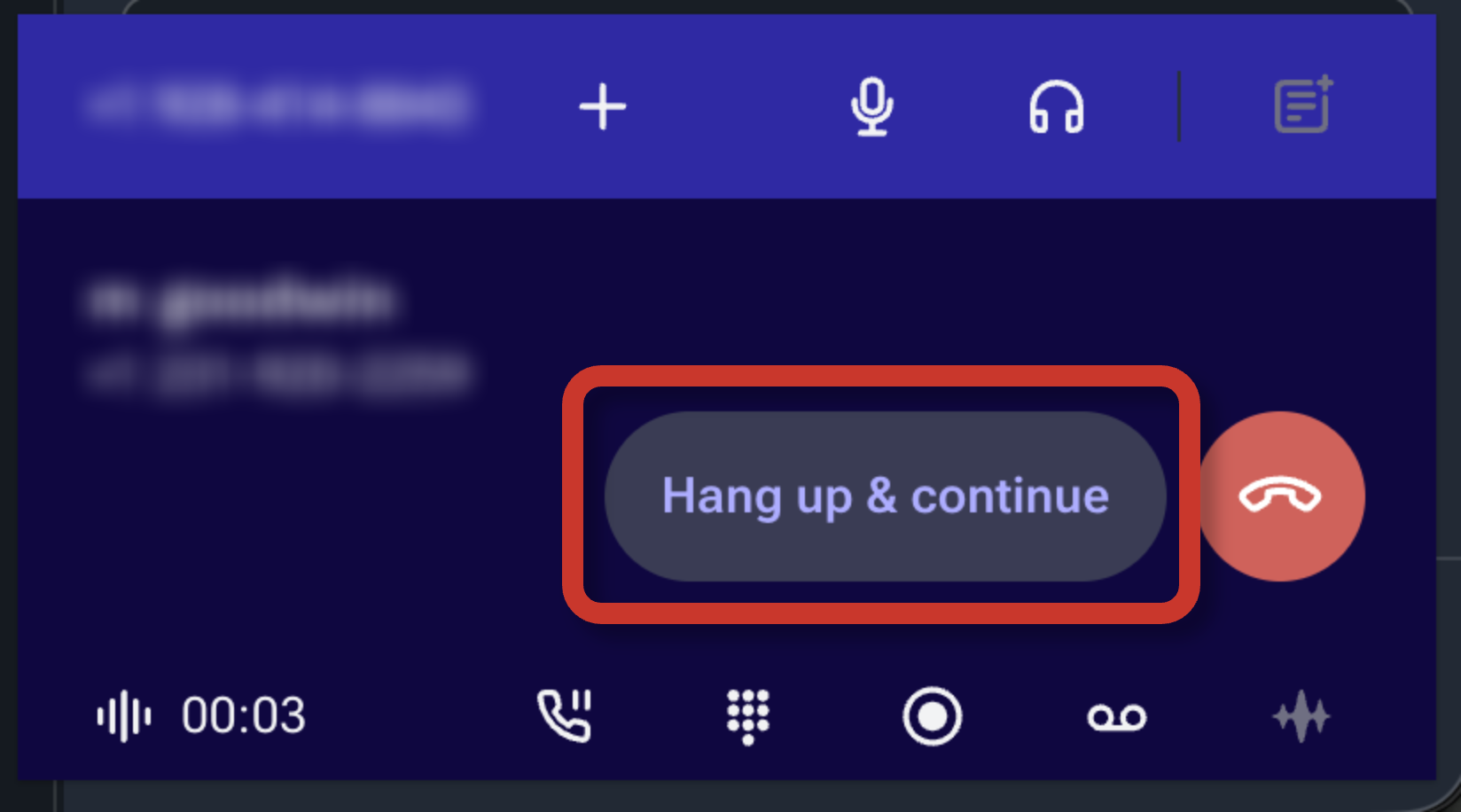
Hang Up button: If you click Hang Up, sequential dialing will pause. You'll need to manually select a disposition and log the call before dialing continues. Use this when you want to review the call outcome yourself before moving on.
Hang Up and Continue button: If you click Hang Up and Continue, the call is ended, automatically logged with your configured "No Answer," dipsosition, and sequential dialing immediately advances to the next call in your queue - no manual disposition or restart required. Use this when you want to keep dialing without interrupting your flow.
Additional Information
- Leaving voicemails or voicemail dropping with the sequential dialer task workflow are now supported.
- If a prospect has multiple phone numbers on their record, the system will attempt to call each number before moving to the next call task in queue.
- When using sequential dialing, avoid clicking the hang up button when a live person does not answer, and instead let the dialer hang up on its own. If you reach a prospect's voicemail, depending on your settings, it will play the recording then automatically hang up after, without leaving a message, or it will drop your default voicemail drop. If you click the hang up button, it will pause the dialer because you're manually intervening. You must then manually log and complete that task.
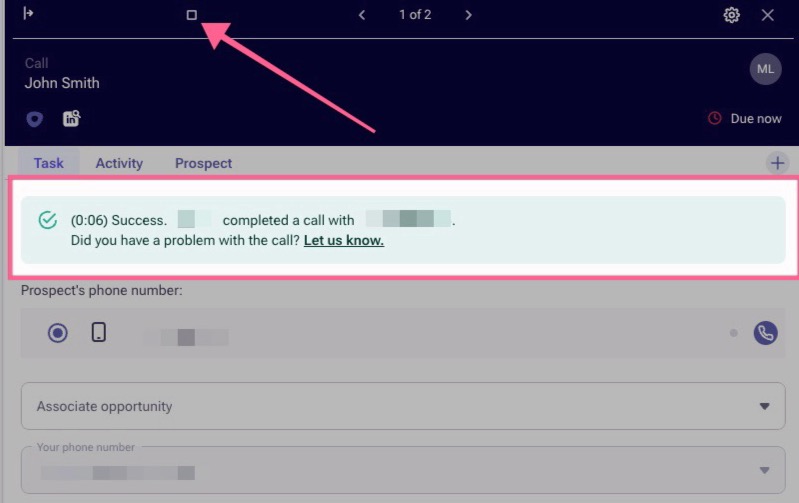
- If you've already made a call attempt on a call task and didn't manually log and complete that call task prior, the sequential dialer will not attempt to re-call that prospect for that specific task again. It'll look like this if you or someone has previously attempted to call them from that task.
Was this article helpful?
That’s Great!
Thank you for your feedback
Sorry! We couldn't be helpful
Thank you for your feedback
Feedback sent
We appreciate your effort and will try to fix the article