Purpose:
The purpose of this article is to provide direction to Outreach Admins in mapping Success Plan fields to sync with a CRM.
Outreach provides three new plan-related fields that can be pushed to Opportunity records in a CRM to provide more visibility into Success Plan information within an Org's CRM.
Intended Audience:
- Outreach Admins
Notes:
- Some Outreach views and options require admin-level governance permissions. If the options outlined in this article are unavailable, contact the Org’s Outreach Administrator as applicable. For more information regarding governance profile settings, refer to the Governance Profile Settings Overview article.
Before Completing this Process:
Outreach Admins must create the three specific Success Plan fields in the Org's CRM as described in the table below to complete this process:
| Plan | Description |
|---|---|
| Plan Next Steps | Text field that pulls in the next complete step on the Success Plan |
| Plan Status | Text Field. This is a status text field that is programmatically determined based on the Success Plan. The four statuses that could be displayed are: On Track, Slipping, Delayed, or Archived. |
| Plan Link | URL Field. This is a secure link to the Success Plan that provides read-only access to those who don’t have access to the Plan. |
How To Sync Outreach Success Plans to a CRM:
- Access the Outreach Platform.
- Navigate to the CRM Plugin.
- Click the Opportunity <> Opportunity Object in Types list view.
- Click Sync in the menu bar and click to enable the Pushing option.
- Click to enable the Outbound Update option.
Note: Admins wanting to avoid Outreach ever attempting to update an Opportunity without an associated Success Plan must add the condition as outlined in the table below:
Status Condition Plan Link Is Not Empty
Condition Set to AllPlan Status Is Not Empty
Condition Set to All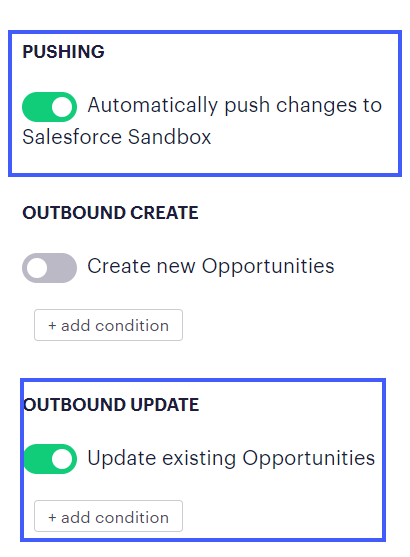 Note: Outreach advises Admins disable Opportunity Updates in Governance Settings as applicable to provide an additional layer of safeguard against attempted updates on other Opportunity fields.
- Click Save.
- Click the Fields tab in the menu bar.
- Click Add and map the Success Plan fields as described in the table below:
Outreach Field CRM Field Plan Link Plan Link Plan Next Steps Plan Next Steps Plan Status Plan Status - Click Save. The CRM Plugin settings have been updated as configured.
Additional Resources:
Was this article helpful?
That’s Great!
Thank you for your feedback
Sorry! We couldn't be helpful
Thank you for your feedback
Feedback sent
We appreciate your effort and will try to fix the article