Objective
The purpose of this article is to provide direction to Outreach admins in manually importing records from a CRM into Outreach.
Applies To
- Outreach Admins
- Outreach Users
Before You Begin
- In the following examples, the Saleforce plugin is referenced. The behavior is the same for Microsoft Dynamics.
- Records are defined as Accounts, Leads, Contacts, etc.
- Manual imports count as API calls.
- API Calls are specific to Salesforce instances only.
Depending on your plugin settings, Outreach automatically looks for and creates new records from your CRM; however, if you want to manually check for new records or if you have automatic record creation disabled in the plugin, you can manually sync a single record or a user's "owned" records.
Procedure
- Access the Outreach Platform.
- Click the Actions button and select the applicable CRM Load option from the Actions dropdown menu.
Note: CRM Load may be represented as Salesforce Load or Dynamics Load.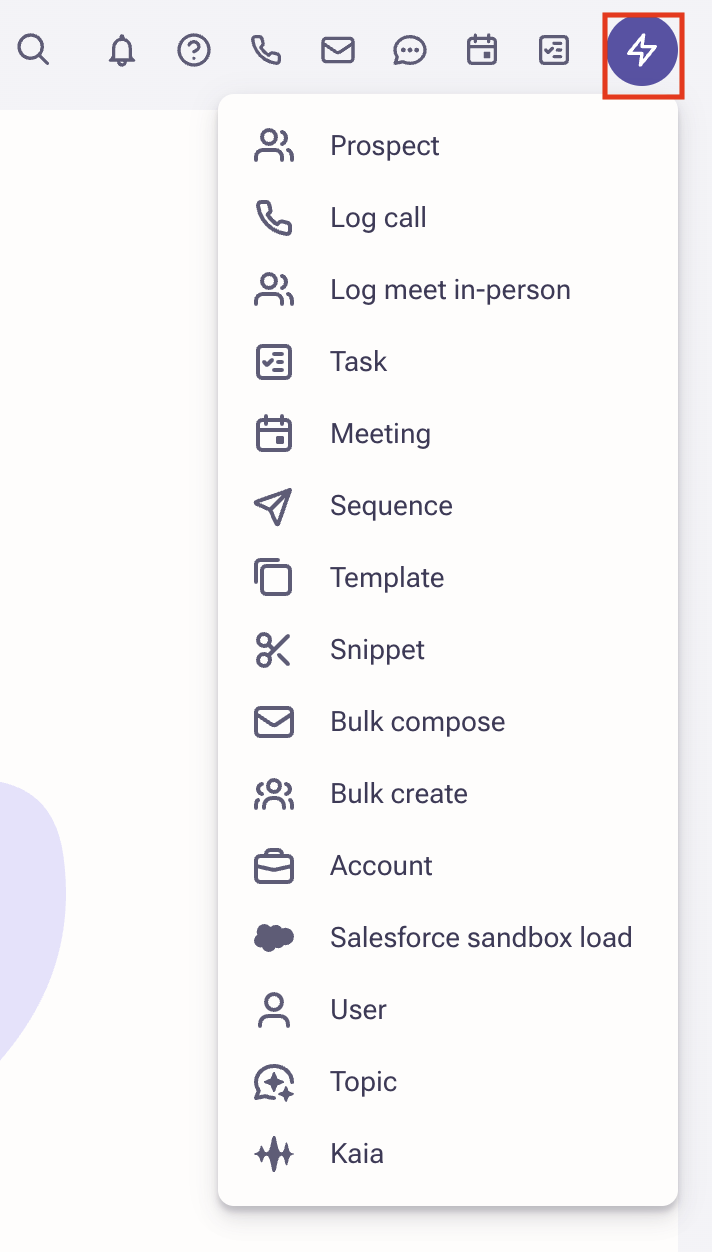
- Select User from the Object Type: dropdown menu.
- Select the corresponding user record type from the CRM User dropdown menu.
- Click to enable the Include Associated Contacts, Leads and Accounts option as applicable.
- Click to enable the Skip Integration Filters and Conditions option as applicable.
Note: This will bypass the conditions configured on the Object type.
Allow a few minutes for the plugin to fully update.
Was this article helpful?
That’s Great!
Thank you for your feedback
Sorry! We couldn't be helpful
Thank you for your feedback
Feedback sent
We appreciate your effort and will try to fix the article