Purpose:
The purpose of this article is to provide direction to Outreach Users in creating a test call list with Connect and Sell.
Intended Audience:
- Outreach Users
Create a Test Call List
- Click the Call Lists link at the top of the page
- Click the New List button
- Enter a name for the list
- Confirm the data source selected is Outreach
- Click Next
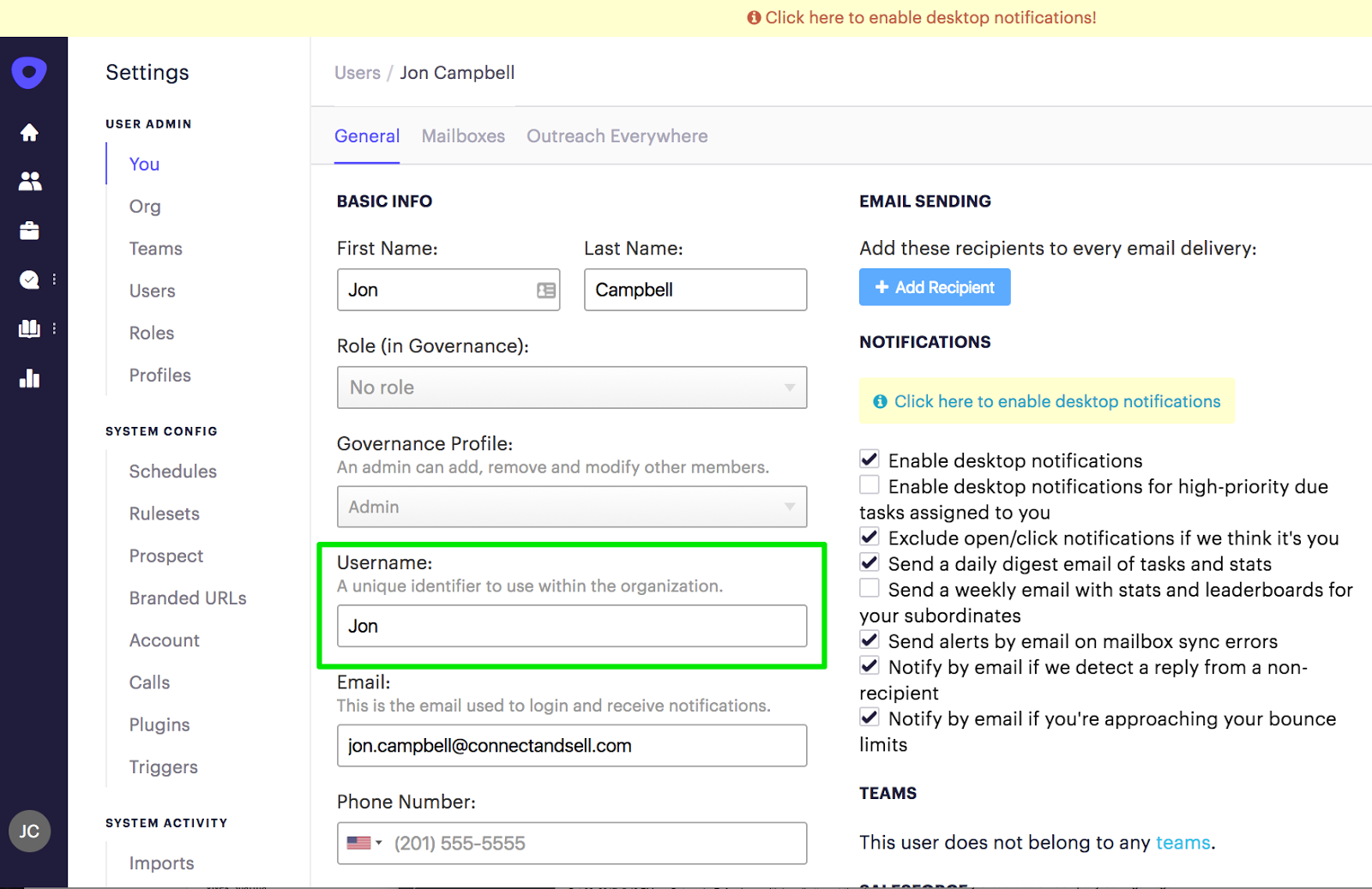
- Enter your Outreach Username exactly as it appears in your Outreach Profile (Outreach>Settings>Username) (*You will only need to complete this step the first time you create a list.
- In the New Call List window select the “In Sequence Phone Call Tasks” from the dropdown list and click Next.
- In the Owner field select a User who has Sequenced Call Tasks that are due in Outreach
- Click the Next button
- Once the List preview is generated and you confirm that contacts are being pulled in for the user selected in Step 8 click the Submit button
- You will see a Success message confirming the list was successfully created, Click the Close button.
If you experience any challenges while completing this configuration please call the ConnectAndSell Support team at 1.888.297.5313 or email support@connectandsell.com
Was this article helpful?
That’s Great!
Thank you for your feedback
Sorry! We couldn't be helpful
Thank you for your feedback
Feedback sent
We appreciate your effort and will try to fix the article