Objective
The purpose of this article is to provide direction to Outreach Admins regarding creating and modifying User Roles.
Applies To
- Outreach Admins
Before You Begin
Some Outreach views and options require admin-level governance permissions. If the options outlined are unavailable, contact the Org's Outreach Administrator as applicable. For more information regarding governance profile settings, refer to the Governance Profile Settings Overview article.
What are User Roles?
User roles are a way to control which actions your users are able to take within Outreach based on their relationships with other users in the organization. Roles are built with a hierarchy that indicates which users report to other users.
Roles work together with user governance profiles to restrict actions that users of that profile can take. Any governance settings that include the option "Owned and reports' records" are based on the role hierarchy. A user with this option selected will be able to perform the specified action for their own records and any of those owned by other users that report to them.

In the screenshot above, users of the Manager governance profile are able to send mailings from their own mailboxes and any mailboxes owned by users that report to them. The reports are based on the role hierarchy for the organization.
Example 1
In the below screenshot, the CEO is the parent role to the COO, but is not the parent role to the Sales Manager and their reports. So in this configuration, only the COO reports to the CEO. The SDR Rep reports to the SDR Lead, and because the SDR Lead reports to the Sales Manager, both the SDR Lead and Rep report to the Sales Manager. Depending on your governance profile configurations, another way to look at this is the SDR Rep may not be able to view records from the SDR Lead or Manager, but may be able to view records of their peers, other users that have the SDR Rep user role. However, the Manager and Lead may be able to view and edit the records of the Reps, because they have a higher hierarchy than the Rep. In this example, this hierarchy tree has no relation or effect on the CEO and COO roles above it.
Example 2
In the below screenshot, the CEO role is now the parent to all other child roles below it. The Rep reports to the Lead, the Lead reports to the Manager, the Manger reports to the COO, and the COO reports to the CEO. Again, depending on your governance profile configurations, the CEO and COO may be able to view and edit any records from the child roles below them, since those child roles report to them, but the child roles may not be able to view or edit records owned by the parent role above it.
Who can Create User Roles?
Admins can create user roles in Outreach. Any additional governance profiles that have been given permission to edit Users and Profiles will also have access to the user roles settings.
Admins are able to customize user role hierarchy directly in Outreach or import roles from Salesforce (recommended if already using roles in Salesforce).

Creating a New User Role
- In the left nav, click Administration.
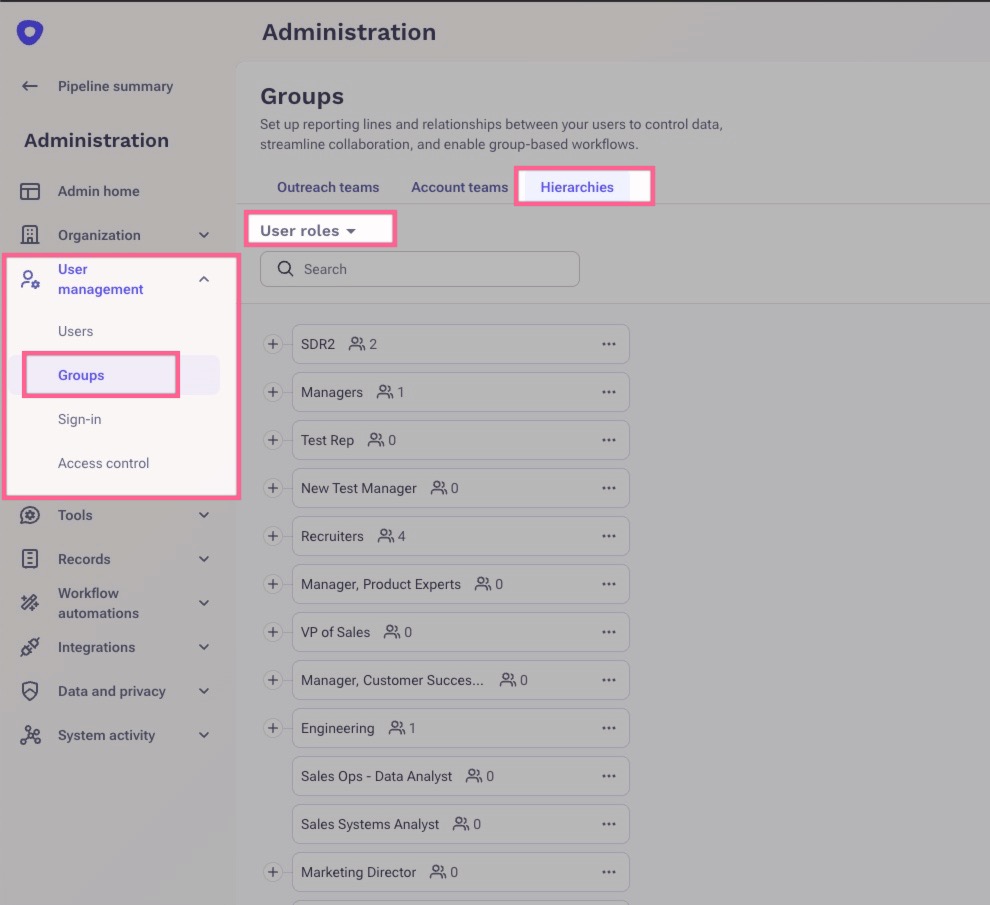
- Click to expand the User management section, then click on Groups.
- In the resulting Groups panel, click to open the Hierarchies tab at the top.
- Click the Teams dropdown and click User roles.
- Click the Add button in the top right corner. A window will appear for you to create the new role.
- Enter the Name of the new role and select its Parent role (if applicable) from the drop-down list.
- Click Add.
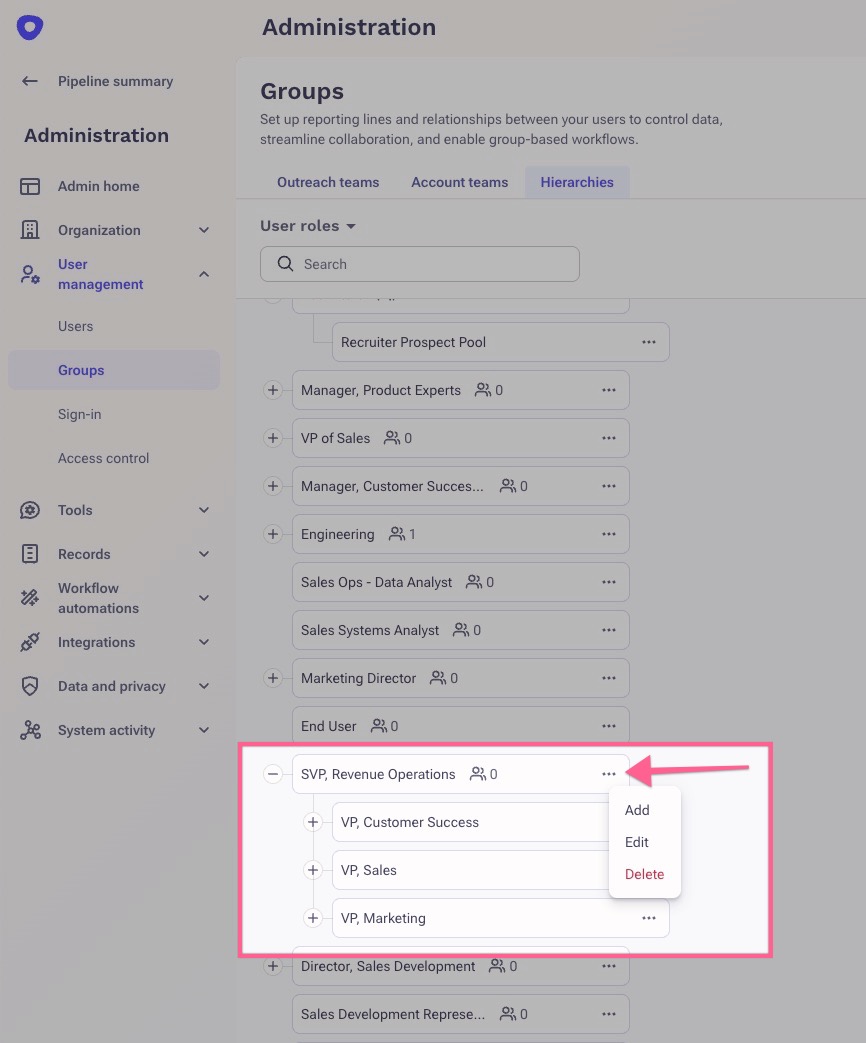
Alternatively, to create a Child Role: To the right of the parent role, click the three dots (...) then click Add.
Editing an Existing User Role
If a role in your organization is renamed or begins reporting to a different role, you can also edit the role in Outreach to reflect those changes.
- In the left nav, click Administration.
- Click to expand the User management section, then click on Groups.
- In the resulting Groups panel, click to open the Hierarchies tab at the top.
- Click the Teams dropdown and click User roles.
- Scroll to the role you wish to edit.
- To the right of the role, click the three dots (...) > Edit. A window will pop up with the role's information.
- Edit the role Name and/or Parent role as needed.
- Click Edit to complete and save.
Was this article helpful?
That’s Great!
Thank you for your feedback
Sorry! We couldn't be helpful
Thank you for your feedback
Feedback sent
We appreciate your effort and will try to fix the article