Objective
This article explains how Outreach Admins can set up the Deal Agent to get AI-generated insights for sales methodology and opportunity fields, reducing manual data entry work for sales reps so they can focus more on selling-related activities.
Applies To
- Outreach Admins
- Outreach Users
Overview
Deal Agent is built for Account Executives who manage opportunities daily in CRM and Outreach. It transforms meeting conversations into accurate, reviewable deal insights and opportunity field recommendations, which you can manually or automatically accept, ensuring critical deal context is never lost.
Benefits:
- Minimizes manual data entry for sellers
- Ensures consistent application of the sales methodology
- Improves data accuracy for forecasting and reporting
Enabling AI Suggested Deal Updates
Pre-requisite
Deal Agent should be toggled on as shown below.
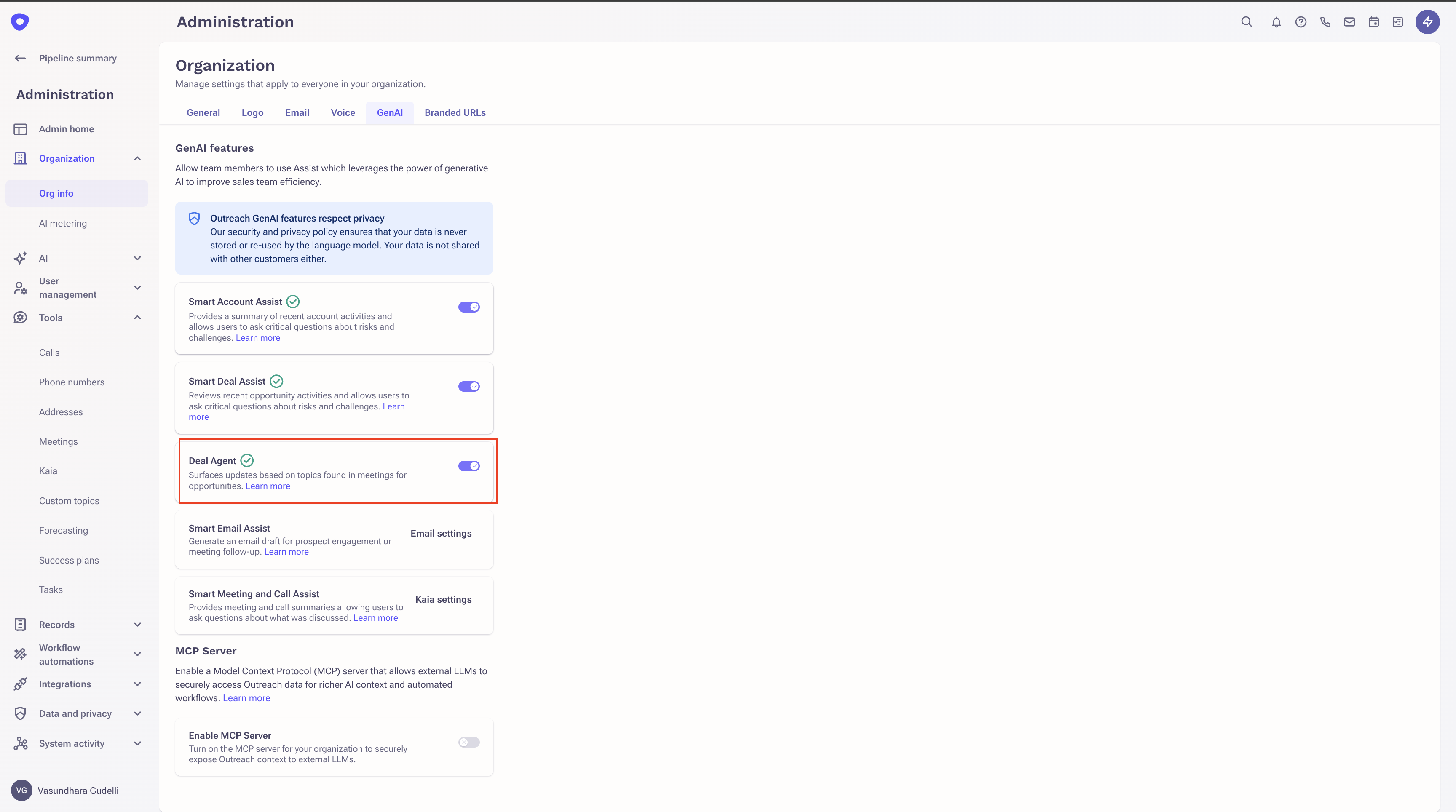
Note: Deal Agent's manual accept and auto-accept actions use in-line editing on Deal fields. In-line editing on Deals no longer requires Forecasting to be enabled, so Deal Agent can be used without turning on Forecasting. This applies to both Salesforce and Dynamics customers.
Sales Methodology
Suggested Deal Updates provide AI-generated insights for Sales Methodology fields, helping sellers reduce manual input and stay aligned with the sales process.
How to Enable
- Navigate to Side panel > AI Agents > Deal Agent > Sales methodology tab.
- Select a sales methodology that is relevant for your organization. Outreach supports MEDDPICC, MEDDIC, and Identify Pain & Champion as standard methodologies, and also gives you the flexibility to configure a custom sales methodology.

If you choose MEDDPICC, you will land on pre-defined fields and prompts.

Map the relevant Outreach fields to the respective methodology fields to complete the setup. You can also set the order of MEDDPICC fields by dragging.
Note: You cannot edit the prompt for standard sales methodology fields like MEDDPICC; however, you can add custom fields with editable prompts.
Note: Economic Buyer and Champion support an additional Prospect appearance option, alongside the default Two-line appearance. With Two-line, Deal Agent surfaces the insight as text only, with no accept button. With Prospect, Deal Agent outputs an actual prospect name that can be accepted directly, and admins can configure auto-accept for these two fields.
Adding Custom Fields
You can add custom fields by clicking the Add field button. Define the following for a custom field:
- Name of the field
- Guide the Deal Agent on the information it should look for
- Appearance: One line, two lines, bullet points, short paragraph, single-select picklist, numeric, and percentage
- Opportunity field mapping
- Update criteria: Auto update, Auto update if only vacant, or Update only after confirmation
- Update method: Append, Prepend, or Replace. Append and Prepend are supported for text fields only; other field types use Replace.
Note: For single-select picklist fields, if appearance is of type picklist, the Deal Agent maps its suggestions to the field's pre-defined dropdown values, it won't recommend a value that isn't already configured for that field. See an example prompt here.
Multi-select picklist fields aren't supported.
Note: You can see the pre-defined picklist values for a field by going to Admin > Records > Opportunities > Field Configuration.
You can also preview the results as shown above before enabling insights for a given field.
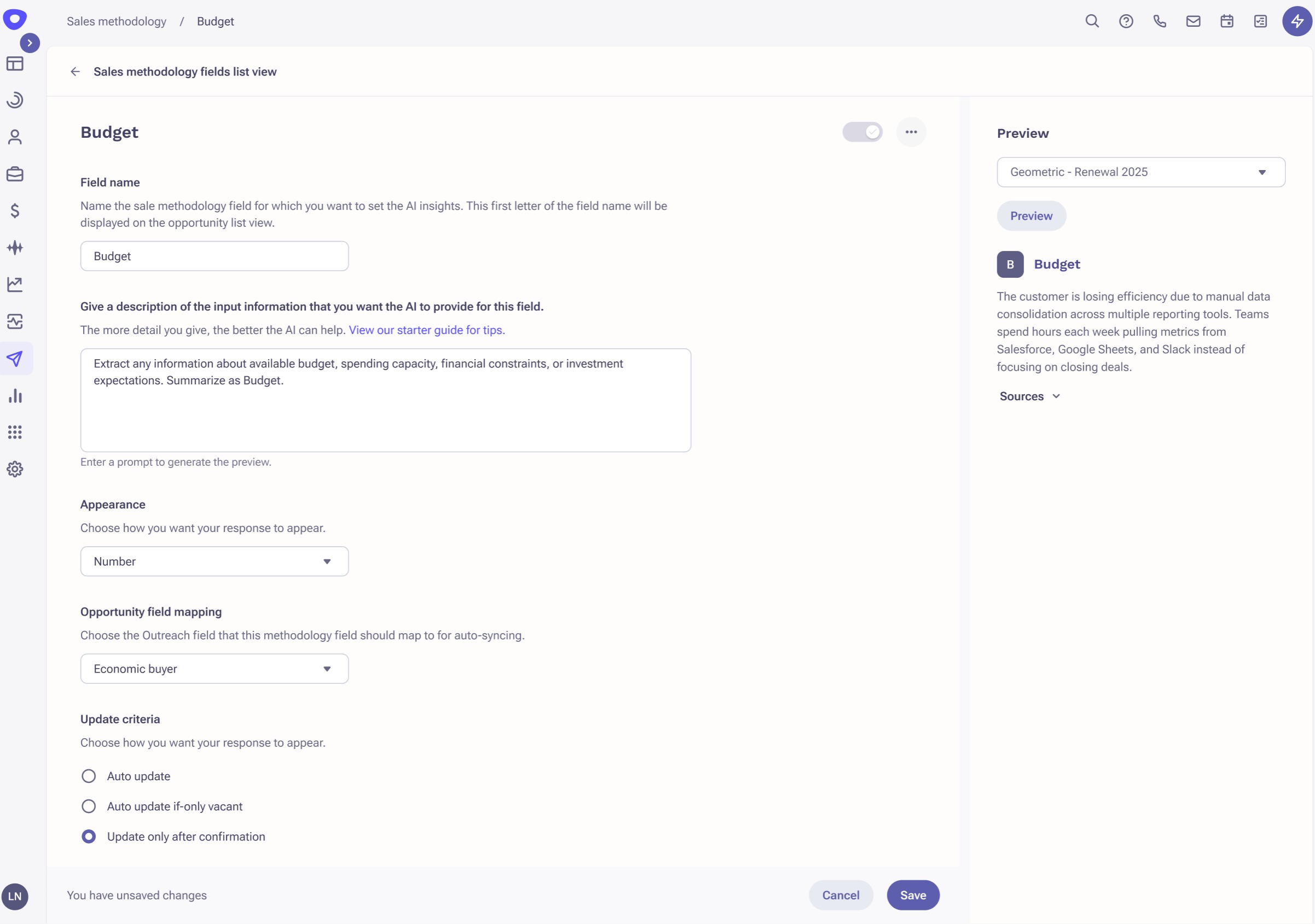
For a custom methodology, choose Custom methodology and follow the same process defined above for adding custom fields.
To learn about the Sales methodology field experience in the opportunity list view, click here.
Opportunity Fields
How to Enable
- Navigate to Side panel > AI Agents > Deal Agent > Opportunity fields tab.
- The Next steps field is active by default for Deal Agent insights. Prompt and update criteria for the Next steps field are not editable.
- Follow the same process as defined above to enable insights for custom opportunity fields.
Note: The update method for Next steps defaults to Prepend; this default applies to new customers, existing customers can update their update method from the config. All other fields default to Replace. With Prepend support, the Accept button now appears for Next steps in Outreach UI

Backfilling Historical Insights
By default, Deal Agent generates insights only from new Kaia calls and meetings going forward. Admins can trigger a one-time backfill to generate insights from historical conversations as well, either across all deal agent fields at the org level or for specific fields.
Org-Level Backfill
- Only admin users can trigger org-level backfill.
- Applies to active deal agent fields only, across all sales methodology and opportunity fields.
- Admin selects the duration to consider: Last 30 days (default), 45 days, 60 days, or 90 days.
- Can be run multiple times.
- Includes a confirmation pop-up before running, since it may incur charges.
Field-Level Backfill
- Only admin users can trigger backfill.
- Applies to all sales methodology and opportunity fields.
- Admin selects the duration to consider: Last 30 days (default), 45 days, 60 days, or 90 days.
- Can be triggered up to 10 times per month per field, useful for re-running insights after updating a prompt.
- Especially relevant for newly created deal agent fields.
Note: Backfill does not populate the Next Steps field, at either the org or field level.
Backfill runs in the background, so you can keep working while it runs. Progress and output can be viewed under Bulk actions.
Note: Org-level backfill costs 1 Amplify credit per meeting, with a confirmation step before charges apply. Field-level backfill is not charged.
Best Practices for Instructing the Deal Agent
The Deal Agent doesn't just summarize meetings; it acts as a digital sales analyst that monitors your deals across multiple conversations. To get the best recommendations, your instructions should focus on what specific signals to look for.
Because the Deal Agent is "silent by default," it will only provide a recommendation if it finds explicit evidence in the transcripts. Use the following best practices to ensure your team gets high-signal, actionable CRM updates without the noise.
To ensure a quality insight is generated, you should share exactly what evidence the AI should look for.
- Vague: "Tell me about the budget."
- Precise: "Identify the specific dollar amount, budget cycle (e.g., Q3), or the name of the department funding this project."
Here are a few example prompts optimized for the Deal Agent's multi-meeting context:
1. Economic Buyer
The Goal: Identify the person with the "Power" and their specific stance on the deal.
Recommended Prompt: "Identify the individual(s) mentioned as having final budget or signature authority. Beyond just a name and title, summarize their specific criteria for ROI or any personal 'win' they've associated with this project. If multiple stakeholders are involved, synthesize the current consensus on our solution from the person with the highest authority."
2. Competitors
The Goal: Move beyond a "list of names" to understand the threat level and sentiment.
Recommended Prompt: "Extract any mentions of competing vendors, incumbent solutions, or 'do-nothing' internal processes. Focus on the prospect's specific comparison points (e.g., price, features, or ease of use). If the prospect mentions a preference for a competitor, summarize the 'why' behind that preference so the team can adjust the win strategy."
3. Closed Lost Reason (Picklist)
The Goal: A retrospective synthesis of exactly why the deal did not close, identifying the "primary driver" as per the pre-defined picklist values.
Recommended Prompt: Analyze this closed-lost opportunity's Kaia call and meeting recordings to determine the most accurate Lost Reason. Select exactly ONE value below.
Lost Reason values — when to choose each -
Price / Budget — The prospect cited cost or lack of budget as the deciding factor. -
Lost to Competitor — The deal went to a named or implied competitor. -
No Decision / Status Quo — The prospect chose to do nothing and stay on their current process, with no competitor named.
Product Gap — A required capability we don't offer blocked the deal.
Rules:
- Choose the PRIMARY driver, not every contributing factor.
- If two compete, pick the one raised closest to the close date.
- Prefer an explicit prospect statement over an inferred reason.
4. Renewal Risk
The Goal: Early detection of "Churn Signals" or declining usage/sentiment.
Recommended Prompt: "Analyze all recent meetings for 'red flag' signals regarding the current partnership. Look for mentions of budget cuts, dissatisfaction with support, or the evaluation of alternative tools. Highlight any instances where the customer mentions a lack of realized value or a change in the internal team that originally championed our product."
AI Insights Listed for Each Field
AI-generated insights help sellers quickly update fields using relevant content from meetings linked to the opportunity.
- For each field that has insights enabled, up to one AI-generated insight may be available.
- Sparkles appear next to the Opportunity name, denoting the number of fields with insights available for that Opportunity.
- Clicking the sparkle will open the slide-out pane > Insights tab, where the user can see the AI-generated deal summary, suggested updates pending acceptance, and auto-updated suggestions.

- Clicking on a field name under suggested updates will open the edit opportunity side panel highlighting the clicked field.

Sellers can:
- Accept an insight
- Dismiss an insight
- Click Copy to insert the insight into the field and then edit it as required
Note: If accepting an insight fails, Outreach shows the specific validation error returned by your CRM instead of a generic error message, so you can see exactly what needs to be fixed. This applies to both Salesforce and Dynamics.
Source Details
Each source includes:
- Meeting title
- Transcript excerpt where the topic was discussed
- Timestamp showing when the topic was mentioned (e.g., 5:39)
- Date of the meeting
- Clicking on a timestamp opens the meeting recording in a new tab and starts playing from that exact moment
Opportunity List View — Sales Methodology Column
- Each field appears as an initial (e.g., M, E, D...).
- If a sparkle appears on an initial, it means AI insights are available for that field in that opportunity.
Opportunity Slide-Out — Methodology Tab
- Sparkles appear on the initials at the top of the Methodology tab.
- This signals that insights are available for those fields below.
Field-Level (Inside Methodology Tab)
- Within each individual Sales Methodology field section, the sparkle is shown near the insight card if suggestions are available.
These visual cues help sellers quickly identify where they can leverage AI to reduce manual effort and improve deal accuracy.
AI-Generated Deal Summary
AI-generated Deal Summary automatically transforms meetings, emails, and CRM data into a clear, structured snapshot of deal health, intent, risks, and next steps, giving sellers instant, trustworthy deal clarity.
You can view the summary under the Insights tab in the opportunity side panel.

Deal Agent Notifications
Deal Agent surfaces AI-driven opportunity updates through Slack DMs, in-app notifications, Slack channels connected to an opportunity, and Microsoft Teams, so updates reach the opportunity owner and, when a channel is connected, the whole deal team.
Connecting a Slack Channel to an Opportunity
Users with edit access to an opportunity can connect a Slack channel so AI-driven updates for that opportunity are posted to the whole team, not just the opportunity owner. A channel can be connected from either:
- The opportunity side panel
- The opportunity overview
Note: Only public Slack channels can be connected, and each opportunity supports one connected channel at a time.
What Gets Posted to the Channel
When Deal Agent detects an update from a Kaia call, the notification is posted to the connected channel in addition to the existing DM and in-app notifications. Each notification indicates whether the update is:
- AI Suggested Update: requires review before it's applied.
- AI Auto-Update: already applied to the field.
Notifications can cover fields such as Next Steps, Close Date, Deal Stage, and Loss Reason. Users with edit access to the opportunity can act on suggested updates directly from the channel.
Managing a Connected Channel
Anyone with edit access to the opportunity can add or remove a connected Slack channel.
Microsoft Teams Notifications
Deal Agent also sends notifications to the opportunity owner in Microsoft Teams when AI detects a suggested update or auto-update to an opportunity field from a Kaia call, showing the field and its new or suggested value.
Note: Unlike Slack, Teams notifications don't support taking action directly from the notification. Users must click View field to be redirected to the opportunity in Outreach to accept, edit, or reject the update.
Was this article helpful?
That’s Great!
Thank you for your feedback
Sorry! We couldn't be helpful
Thank you for your feedback
Feedback sent
We appreciate your effort and will try to fix the article