Objective
Personalize sequence call tasks using AI-generated content. The AI Personalization in Sequence Call tasks feature enables sellers to have AI generated talking points tailored directly to the target prospect without requiring the user to do any additional research
Applies To
- Outreach Users
- Outreach Admins
- Content creators building personalization content
- Outreach Amplify package
Before You Begin
- This feature is available with the Outreach Amplify package.
Overview
The AI Personalization in LinkedIn Steps feature brings Outreach’s Gen AI-powered personalization capabilities to Call Tasks created by Sequences. Sellers can now use personalization blocks—containing predefined AI prompts and real-time buyer signals—to generate tailored talking points for calls eliminating the need to research the prospect before calling, as well as a personalized voicemail message that can be dropped to a prospect with a realistic AI generated voice.
How it works:
-
Create a Personalization Block
- Go to: Content > AI Content > Personalization, or access it directly from a sequence step.
- Define the title, AI instructions, buyer/seller data inputs, and variables.
-
Add to a Call Step
- In a sequence, add a Call step.
- Choose whether you want personalized Talking Points, Voice Message, or both.
- Select a personalization content block or a prebuilt template with personalization included.
- During task execution, the rep will see personalized talking points and/or voice messages to use during the call
-
Personalization Handling
- Variables (e.g.,
{{first_name}}) are resolved using Outreach data. - If any variables are missing, they will remain in {{...}} form unless the AI confidently fills them.
- Variables (e.g.,
Best Practices
- Use timely signals like funding news, product launches, or job changes to enhance relevance.
- Always preview blocks with real data to ensure accuracy.
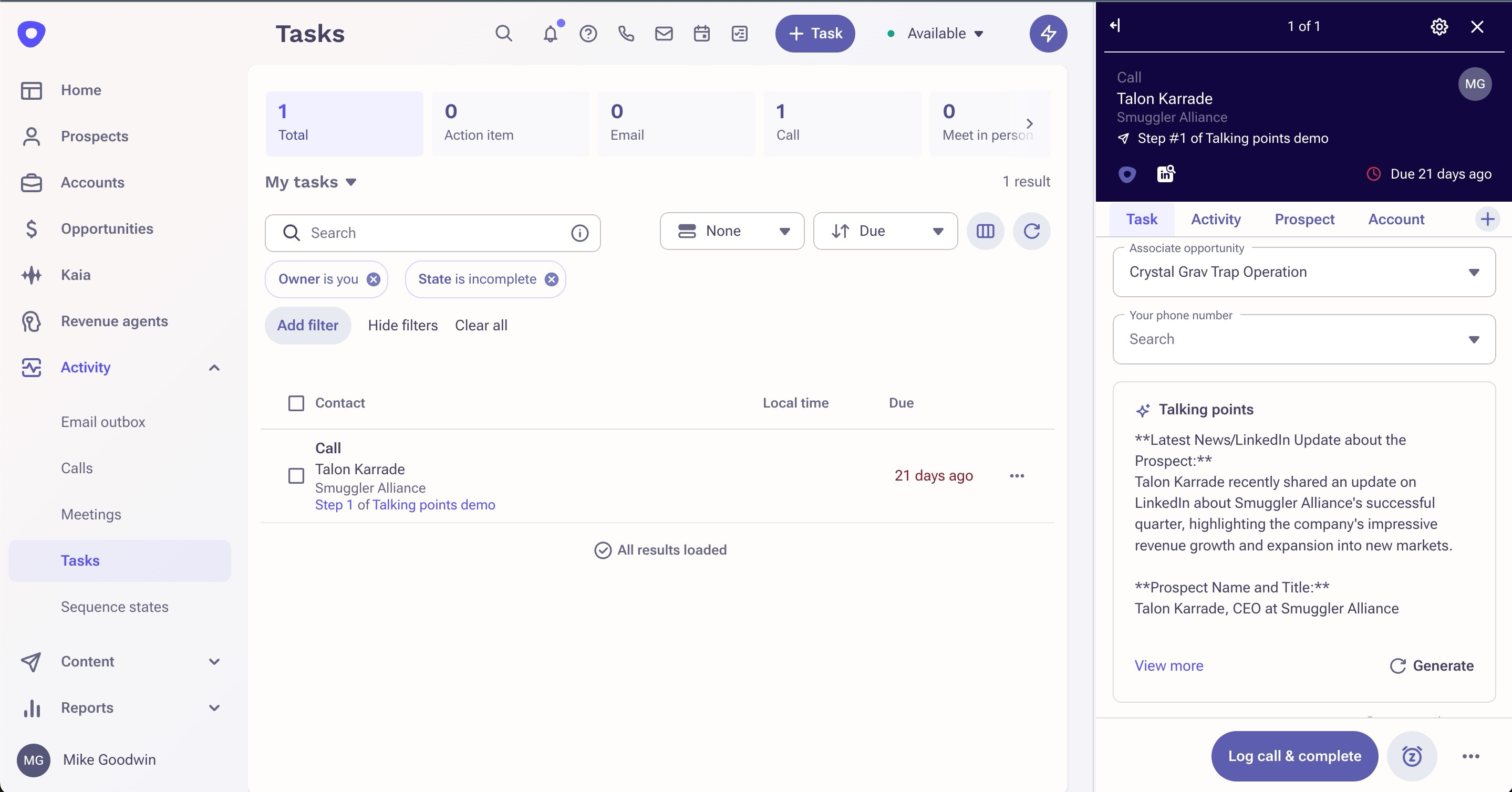
Voice Message Configuration and Use
While in a call task with a Personalized Voice Message configured, users are able to use this personalization block in 2 ways:
- As a script to read manually from when leaving a voicemail
- Use text to speech (TTS) with a generative voice powered by Google Chirp3-HD in combination with the voicemail drop feature to read the script for you. To select which voice you want to use for these voicemails, go to User Settings --> Voice --> Voicemail. Within the setting "When calling (voicemail drop)", select a voice in the "Personalized voicemail voice" field. The following languages are supported with both male and female variants.
- Chinese (Mandarin)
- Dutch (Netherlands)
- English (USA)
- English (UK)
- French (Canada)
- French (France)
- German (Germany)
- Hindi (India)
- Italian (Italy)
- Japanese (Japan)
- Korean (South Korea)
- Polish (Poland)
- Portuguese (Brazil)
- Russian (Russia)
- Spanish (Spain)
- Thai (Thailand)
- Turkish (Turkey)
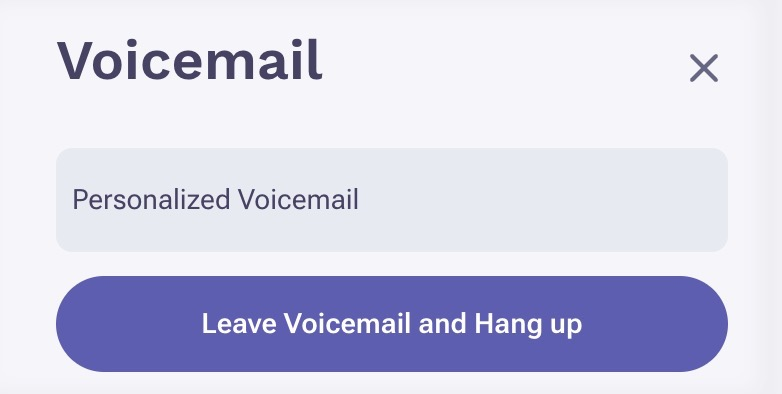
When you click the voicemail button in the dialer, you will receive a new option for "Personalized Voicemail".
Was this article helpful?
That’s Great!
Thank you for your feedback
Sorry! We couldn't be helpful
Thank you for your feedback
Feedback sent
We appreciate your effort and will try to fix the article