Purpose:
The purpose of this article is to provide direction to Outreach Admins in deploying the Outreach extension in Office 365.
Intended Audience:
- Outreach Admins
Notes:
- Some Outreach views and options require admin-level governance permissions. If the options outlined in this article are unavailable, contact the Org's Outreach Administrator as applicable. For more information regarding governance profile settings, refer to the Governance Profile Settings Overview article.
Deploying the Outreach Extension in Office 365:
- Sign in to the Office365 admin portal (https://portal.office.com)
- Go to Settings > Services & add-ins in the left-hand navigation
- If you are using the Preview UI, click “Show All” > Settings > Services & Add-ons in the left-hand navigation
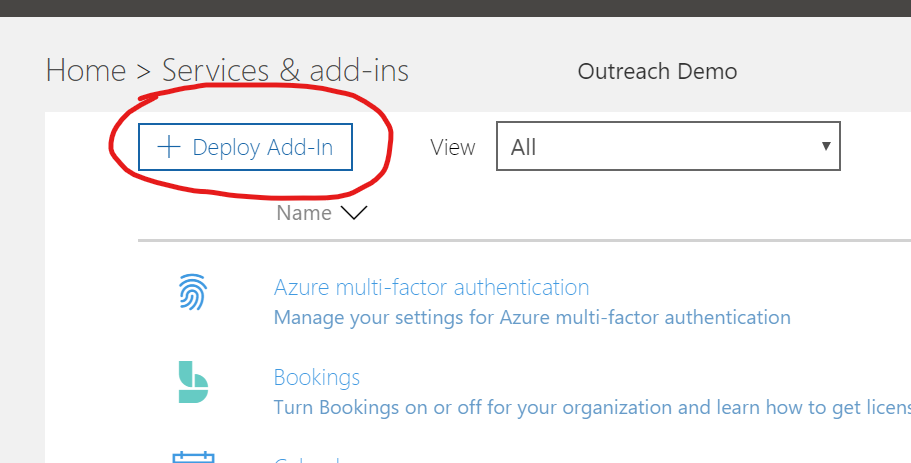
- Click “Deploy Add-In” at the top:
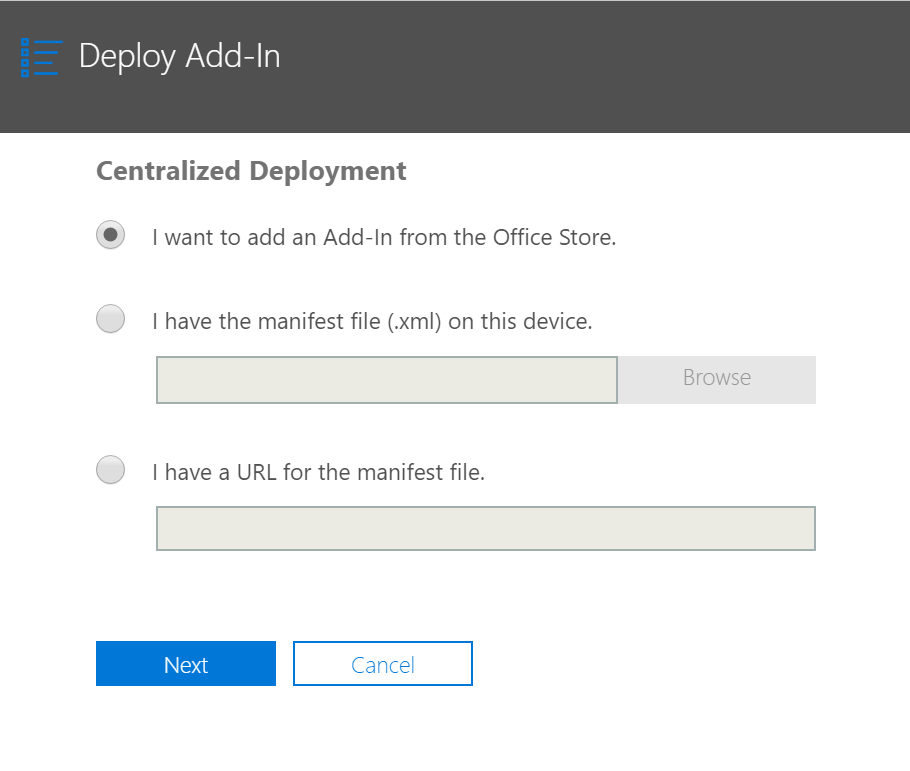
- Select “I want to add an Add-In from the Office Store” and click “Next”:
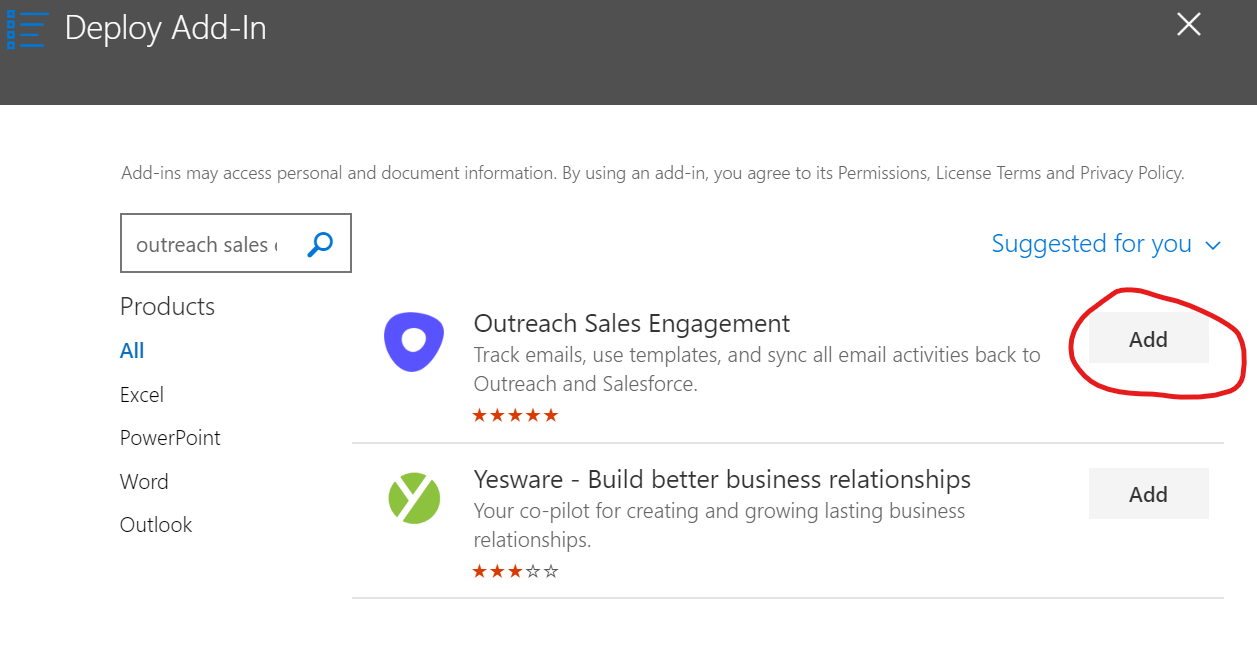
- Search for “Outreach Sales Engagement” and click “Add” next to the result:
- Specify who has access on the next screen. You can deploy to everyone, specific users or Azure AD groups, or just yourself for initial testing. In order to allow users to remove the add-in once it is deployed or make it optional, click (View Options) below the radio buttons:
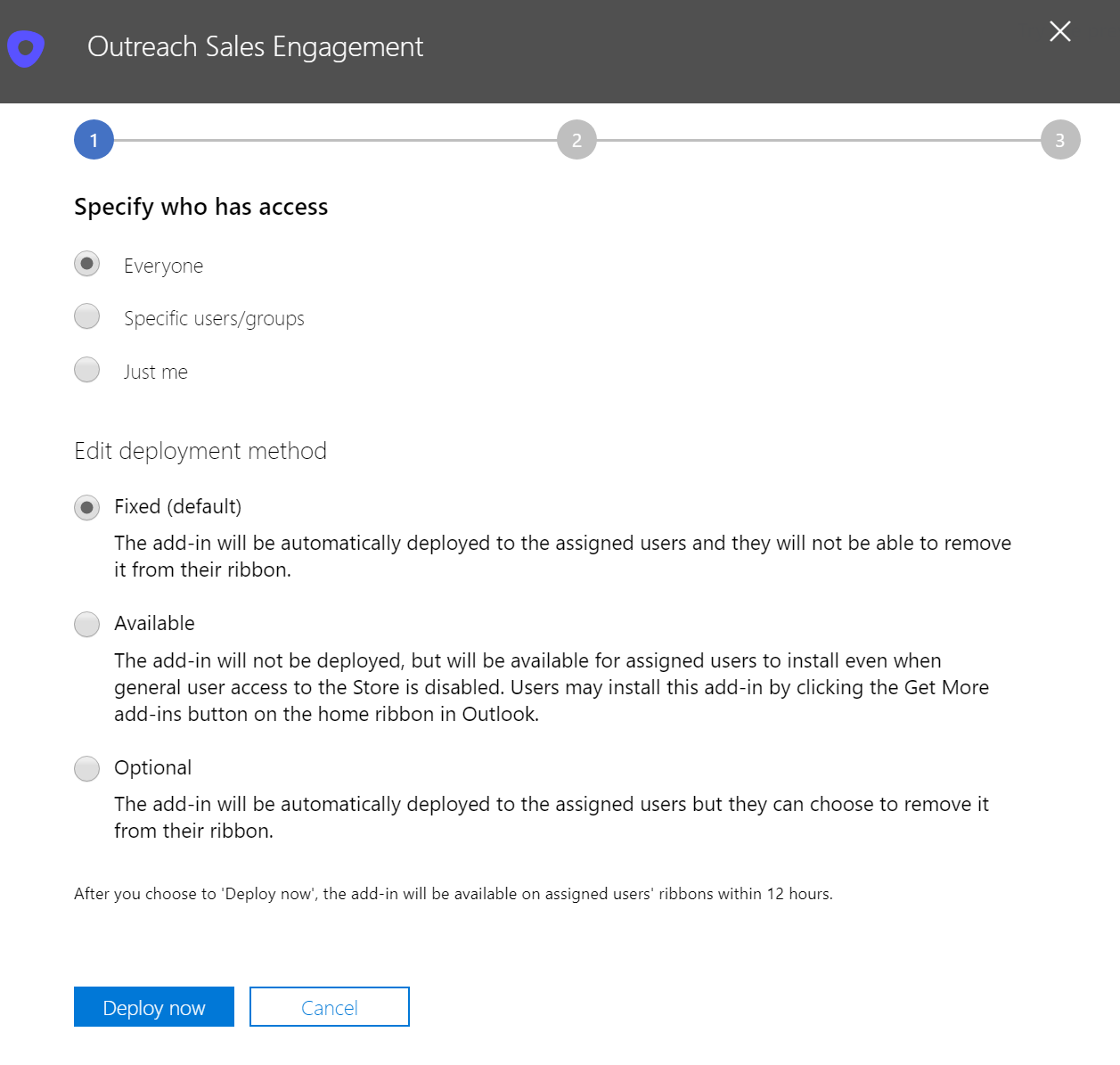
- Click “Deploy Now” to initiate the deployment. It may take up to 12 users for the add-in to be fully deployed to users.
- Click “Next” and “Close” to complete the process.
Additional Resources:
Was this article helpful?
That’s Great!
Thank you for your feedback
Sorry! We couldn't be helpful
Thank you for your feedback
Feedback sent
We appreciate your effort and will try to fix the article