Objective
The purpose of this article is to guide Outreach Admins through the process of configuring the Outreach app for Slack as a notification channel. This integration allows Outreach users to receive notifications via Slack once set up properly.
Applies To
- Outreach Admins
Before You Begin
- Ensure that you have permission to add apps to your Slack workspace.
Procedure
- Log in to Outreach as an Admin.
- Navigate to Administration > Organization > Org info > General, then scroll down to Slack notifications.
- Connect the Outreach app for Slack by following the prompts.
Notifications to Slack Channels
The following setting, which is available after the instance is connected to Slack, allows admins to control whether individual users can associate Slack channels with Outreach accounts.
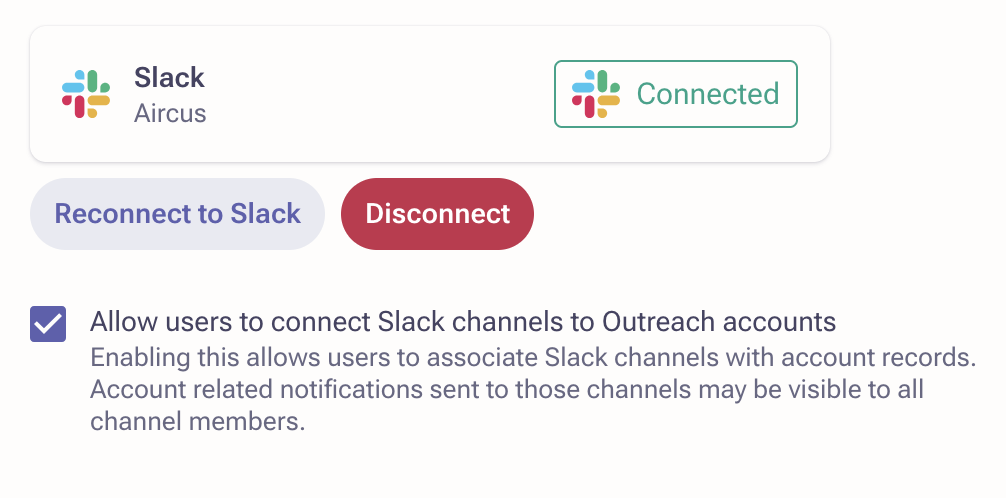
Allow users to connect Slack channels to Outreach accounts
Enabling this allows users to associate Slack channels with account records. Account-related notifications sent to those channels may be visible to all channel members.
Usage of AI
If you are looking for configuring Omni chat for Slack, please refer to following article: Using Omni in Slack
Outreach uses AI to generate responses, which may occasionally be inaccurate or incomplete — please review and verify outputs before relying on them.
Additional Information
Integration for Slack is enabled at the instance level using Slack OAuth. Once connected, Outreach attempts to automatically map Outreach users to their corresponding Slack users.
If the mapping is successful, users can start receiving notifications via Slack and configure the app for Slack as their preferred notification channel.
The Outreach application for Slack is currently under review by Slack. While the app functions correctly and users can receive notifications via Slack, you may see the following warning until the review process is complete: "This app is not approved by Slack. Apps are reviewed to ensure a quality experience. Learn more."
Was this article helpful?
That’s Great!
Thank you for your feedback
Sorry! We couldn't be helpful
Thank you for your feedback
Feedback sent
We appreciate your effort and will try to fix the article